




The Unreal Footsteps and Foley auto-tagging is an Unreal Editor Utility Widget that helps tech sound designers automatically place animation notifies to trigger footsteps and foley movements on a large amount of animation files in Unreal.
The tool will iterate through an array of selected animation files and go through each frame of the animation to place animation notifies where it detects footsteps or foley movements. It will also set on each notify the speed and length of the movement detected so the audio can be modulated accordingly.
Also the plugin is built in a way that lets advanced users change the Animation Notify class used to make it compatible with middleware integrations like Wwise or FMOD.
It has been tested on Unreal Engine 5.7.
The Unreal Footsteps and Foley auto-tagging is part of the Unreal Tech Audio Toolkit plugin, so follow the installation instructions there.
Through the Unreal Tech Audio Toolkit plugin window, open the Footsteps and Foley auto-tagging.
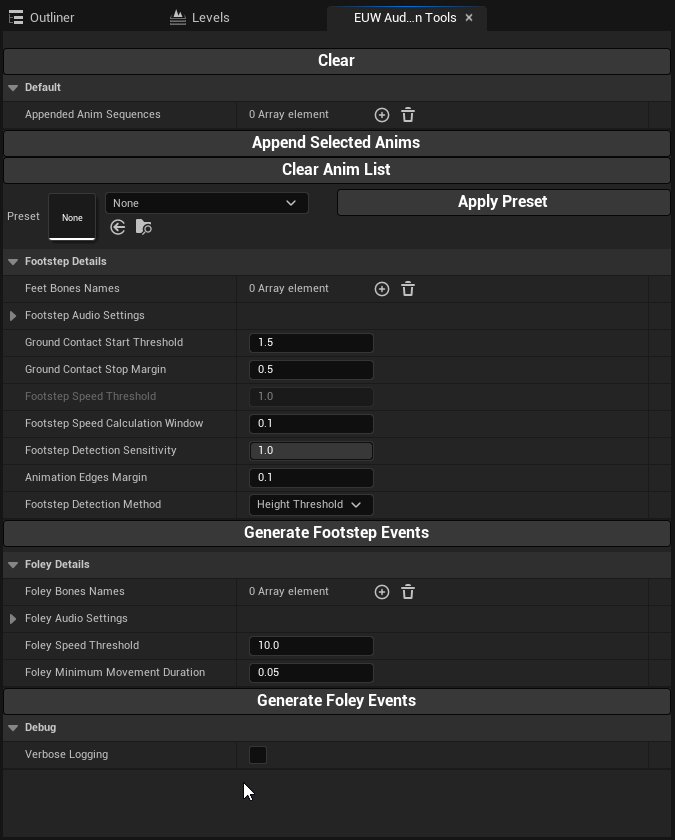
To select which animation files to add notifies on, you can add them to the array “Appended Anim Sequences”. You can either do so by clicking the “+” button and manually browsing for them, or by selecting them in the Content Browser and clicking on “Append Selected Anims”.
Then you have to fill in some information about the footstep and the foley events you want to place.
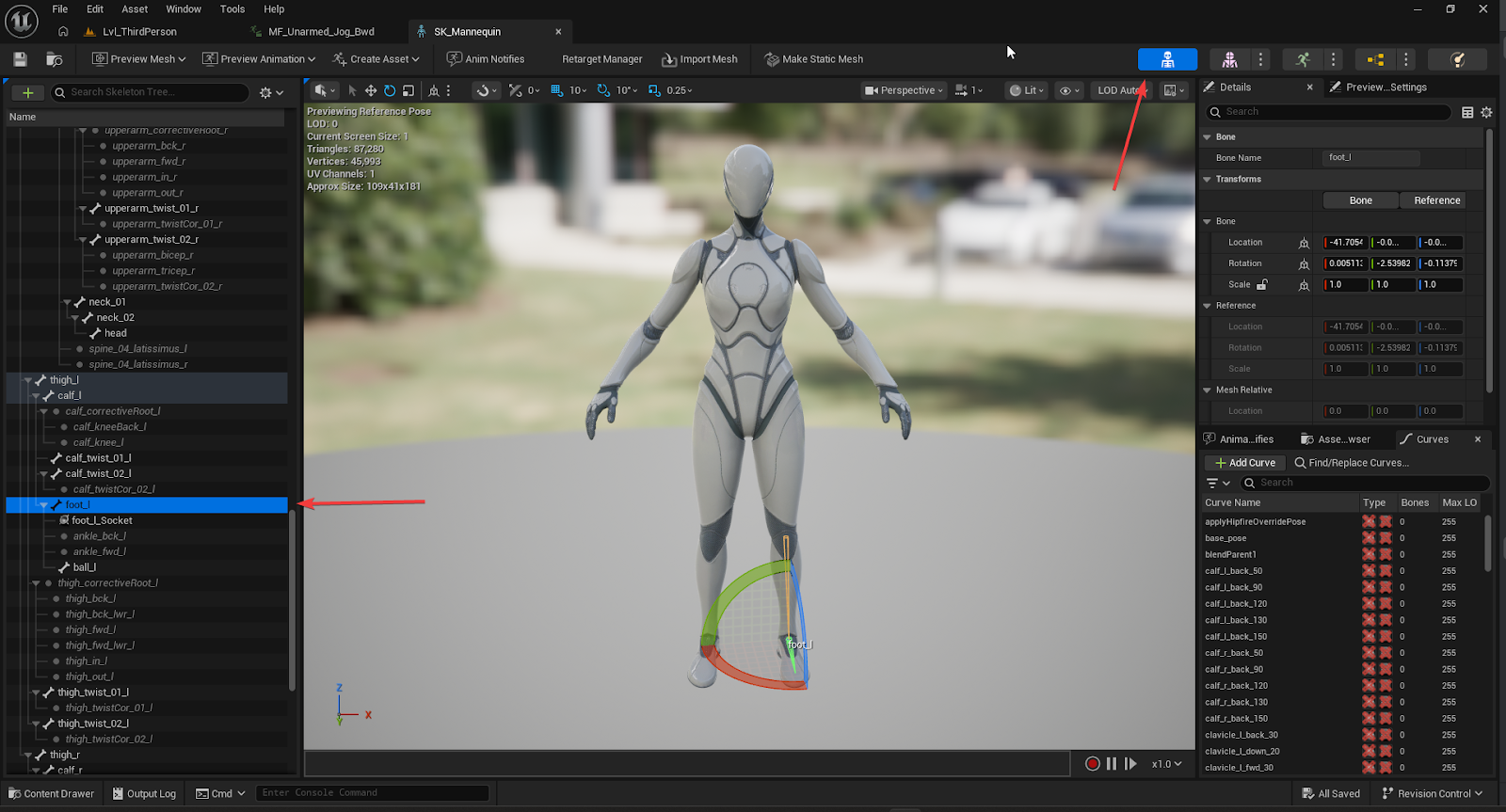
In “Feet Bone Names” you have to add the names of the bones on the animation skeleton that will be used for footstep detection. If you don’t know those, they can be found by opening an animation file, clicking on the skeleton button and looking through the list on the left side to find the bones and their names. In the case of the Third Person Shooter template, these would be “foot_l” and “foot_r”.
Then in the Footstep Audio Settings you need to set which Sound Cue will be used. This lets you choose which footstep sound you want to be placed for this batch.
For the tool to work, we need to specify at which height (z-axis) the ground is considered to be. This is because the skeleton and animations might not be set up in a way where the ground is at 0. In the Third Person Shooter template for example, the foot bone transform is located at the ankle level, which means we need to increase the value of “Ground Contact Start Threshold” to 11 units.
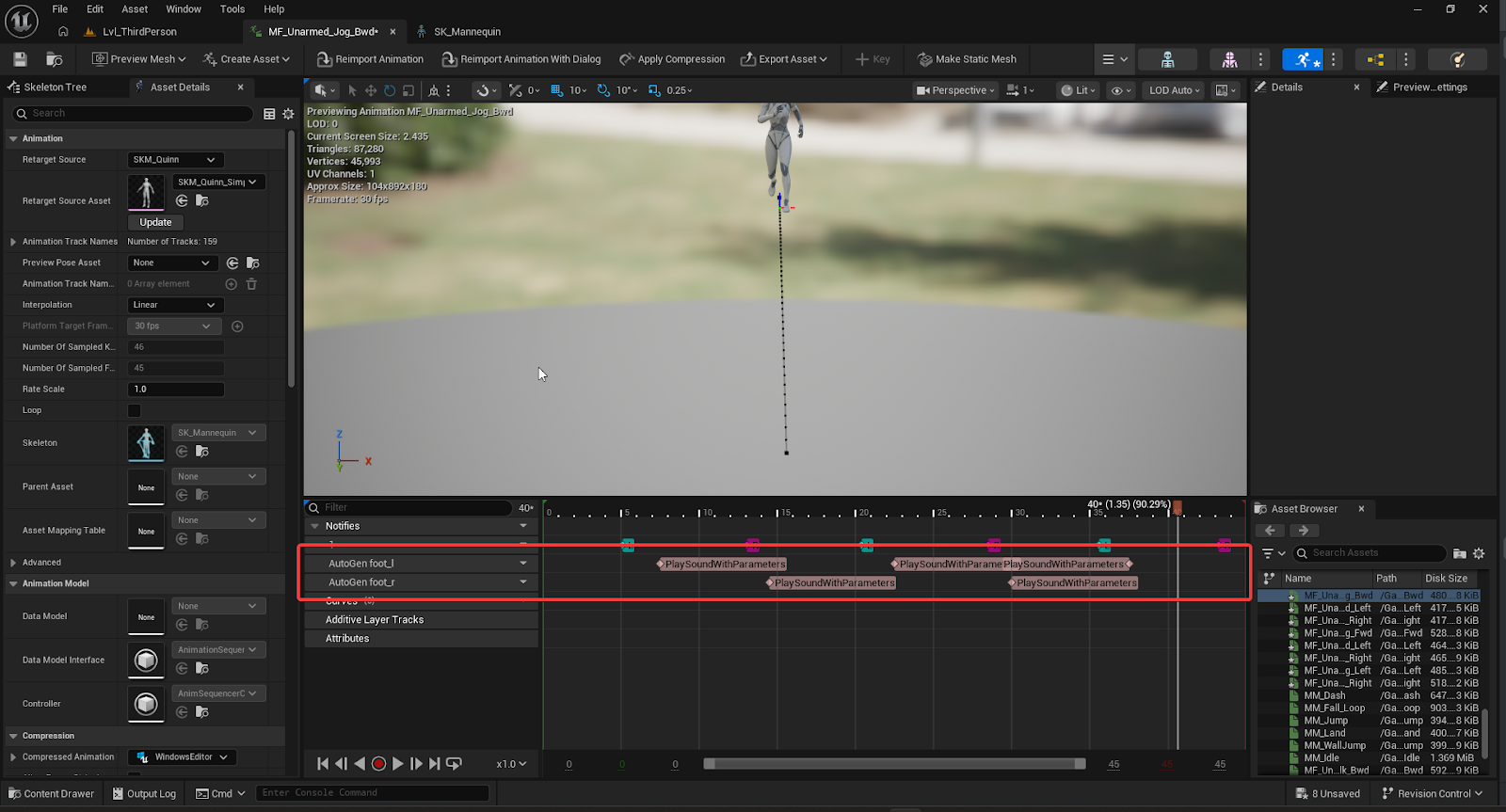
Finally press “Generate Footstep Events”. You should see your animation files have been modified and if you open one of those, you should see animation notifies have been added to the timeline.
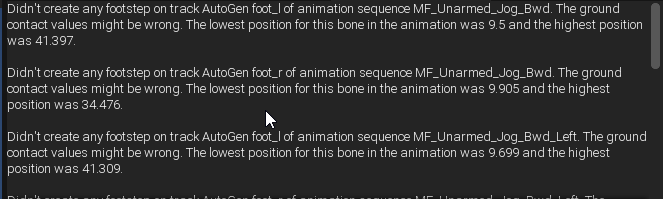
If you don’t see any, check the top of the widget where error messages appear. You might see a message that says “Didn’t create any footstep [...]”. This message will give you the lowest and highest detected positions of the bones over the whole animation to help you estimate the correct ground height. You can freely change the height and press Generate again as you see fit, this will simply delete any old autogenerated notifies and try to set new ones.
For foley movement notifies, the process is very similar. Select the name of the bones you want to use for the detection. We usually use the hands as these tend to be a good indicator of movement. In the Third Person Shooter template, these bones would be “hand_r” and “hand_l”. Then, instead of a ground height, the foley generation requires you to set a speed threshold and a minimum movement duration. These will define how fast and long a movement of the bone needs to be for a notify to be triggered. Similarly to the footsteps, feel free to tweak these values and regenerate until you find a good setup.
Because animation files for the same character will probably use the same bone names and sound events, you can create Preset data assets that will store these values in an Unreal Asset.
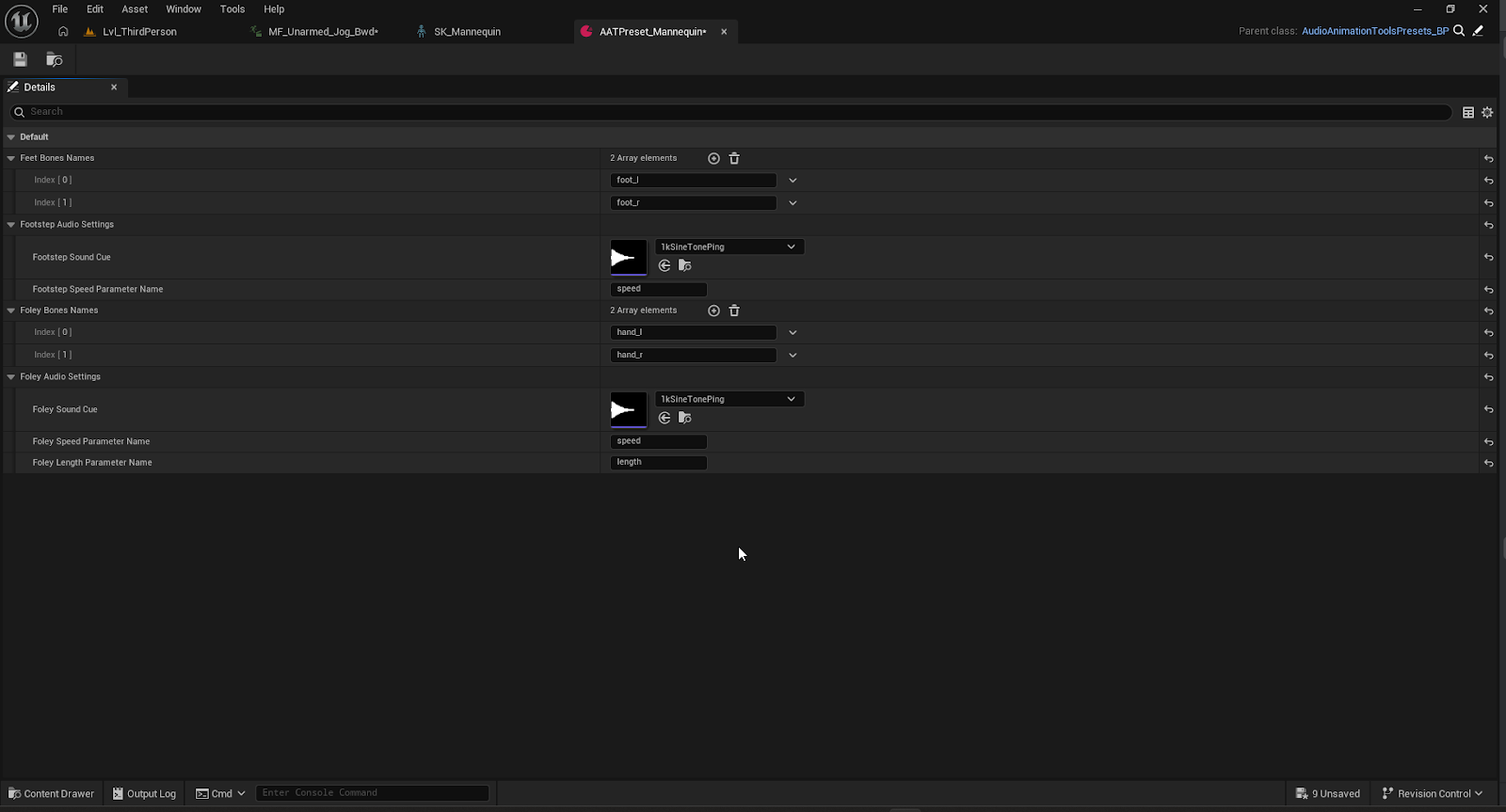
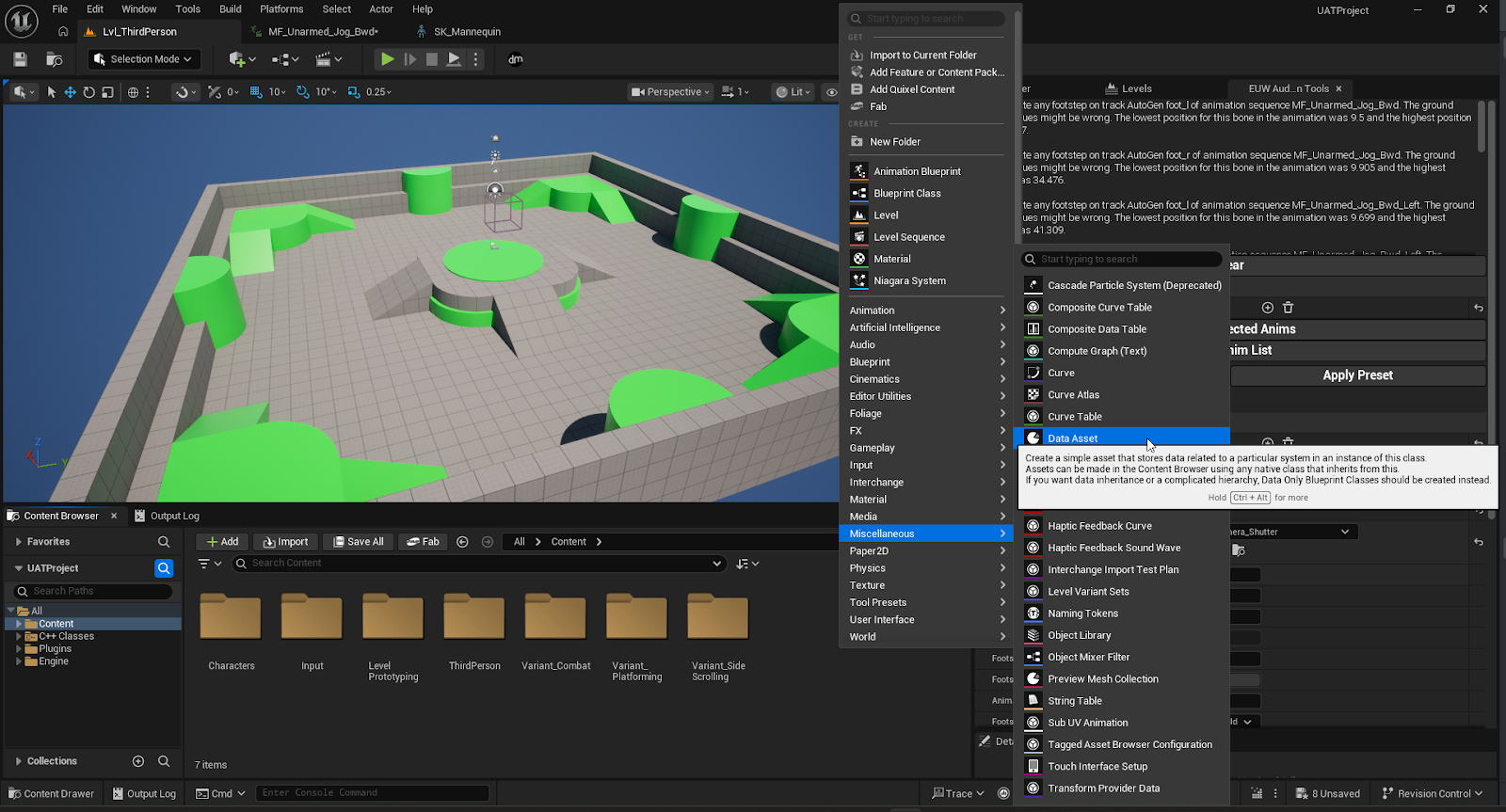
To create one of those, simply right-click in the Content Browser and navigate to “Miscellanous/Data Asset”. Then choose “AutoTaggingPresets_BP” as a parent and name this Preset asset. You can then set the values that will be used whenever this preset is applied on the widget window.
Footstep and foley event generation not only analyse when an event happens but also what was the speed of the bone and length of the movement when this event occurred. This is very useful if the character has animations where they walk, jog and run. You can then use these parameters to drive which sample, volume or pitch to use in your audio event.
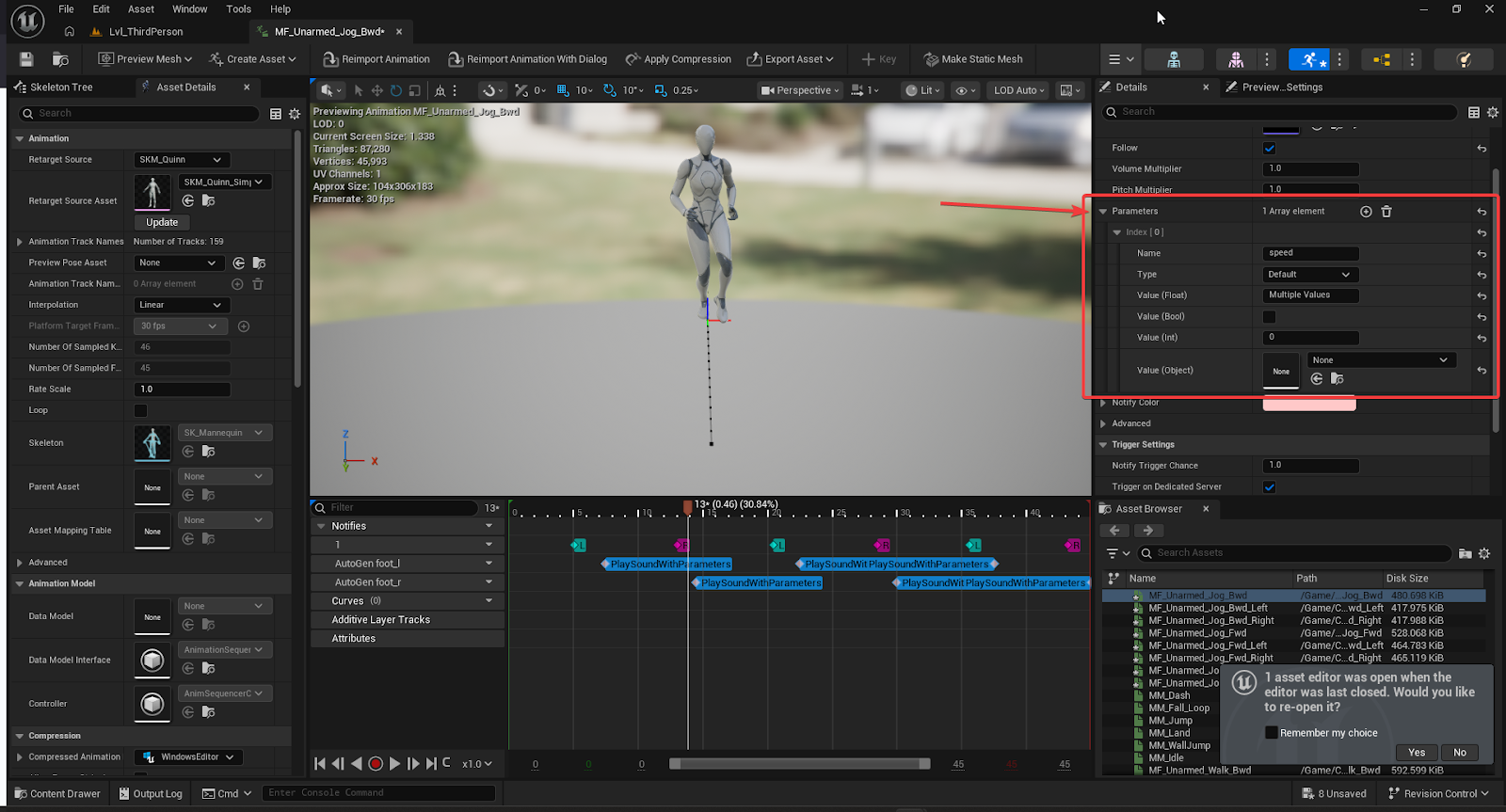
For these to work in your Metasound Sources, you need to create a float input. Then you need to fill the setting “Footstep Speed Parameter Name”, “Foley Speed Parameter Name” or “Foley Length Parameter Name” in the widget with the exact same name of that float input. If this is set up correctly, everytime the notify triggers your Metasound Source, this float input will get the value of the speed or length calculated at the moment of the notify.
If you are using Sound Cues, then you need to have a node using a param in the Sound Cue (eg a Continuous Modulator) with a Parameter Name filled out, and use that name in the widget settings.
It’s quite common to have a lot of false positives for footsteps depending on how the character is animated. To help with this, there are two useful parameters.
Ground Contact Stop Margin : this is the extra height the bone has to reach to be considered “not touching the ground anymore”. This means that if the bone moves a little around the height of the ground, it won’t constantly retrigger and will only trigger if the bone does a big enough up-and-down movement. Increasing this value will reduce the amount of notifies detected, decreasing this value will increase the amount of notifies detected.
Footstep Detection Sensitivity : this is a filter that will filter out footsteps which are considered too “soft” or “slow”. For complex animations, this might happen if for example the character scuffs as they slow down after running. This sensitivity will work by filtering out all footsteps whose strength is not strong enough. A value of 1 will allow all footsteps, and a value of 0 will remove all footsteps. As you lower the value, only the strongest footsteps will stay.
Finally there is an extra value that was added to compensate for some weird animation artifacts we had during a production.
Animation Edges Margin : this setting works as a limit to detection around the edges of the animation. In a project we had, the character would always start and end their animation in a T-pose. This would create false positive footsteps on the edges of the animation. This setting will make sure that all footsteps detected within x seconds of the animation edges (beginning or end) will be ignored.
Because of how the height calculation works, this system completely falls apart when the character walks on a slope. To counter this, we introduced another footstep generation method called “Tangent Calculation” which uses different math to try and place footsteps. This one has been only lightly tested and validated, so the results might not be as good.
After you have generated the notifies, you are free to move them around, change their sound, change the parameters they detected and add any of your own. However, we strongly advise you to move those to other tracks than the ones generated by the tool. Whenever you generate events on an animation file, the widget will look for tracks that have the name “AutoGen “ + the name of the bone and delete those tracks with the animation notifies in it. So if you leave your modified or added notifies in those tracks and generate events again, these will be effectively deleted.
The widget comes with the “AnimNotify_PlaySoundWithParameters” class which works exactly the same that the “Play Sound” notify from Unreal but with the possibility of setting parameters on the sound to be played. If you need to use another animation notify class (for example if you are using a middleware, or if you are using the Surface Detector Notifies), this is entirely possible but requires you to modify some blueprints.
First look for the asset called “AutoTaggingTools_AudioFunctions” and open it. There are three functions which you can use to change the Animation Notify class.
Get Anim Notify Class : the return of this method will be the Anim Notify class used by the generation system. Simply change the return value to the class of your choice.
Set Footstep Notifies Data and Set Foley Notifies Data : this method is called when the generation has placed all the notifies and calculated their data and is used to set the correct values on the notifies. If you change the class of the Anim Notify, the “Cast To AnimNotify_PlaySoundWithParameters” will always fail. You need to change this node and the following ones based on the Anim Notify class you are using. As you can see, this is where we get the Sound Cue defined in the widget settings and set it to the notifies, or where we get the footstep speed and set it as the value for our Audio Parameter.
Your notifies however might also need to change the audio settings exposed by the widget. Most notably, if you use a middleware integration like Wwise, you will need to specify an AkAudioEvent in the settings, not a Sound Cue. Fortunately, these settings are defined as BP Structure, meaning they can be easily edited. Find the assets called “AutoTagging_FootstepAudioSettings” and “AutoTagging_FoleyAudioSettings” and there you will be able to set what the audio setting types are.
As a thorough example, if we were to use the Wwise Unreal integration plugin, the modifications necessary would be to :
If no animation notifies are placed on your animation and you feel there should be, there might be several causes.
The first reason might be wrong values in the settings. Normally, the widget will list all animation files where no footsteps have been placed on the top part of the widget. This will also already give you the lowest and highest positions that have been detected in the file, to help you set your settings correctly.
If you want even more information regarding the detection of footsteps and aren’t afraid of a log spam, you can always toggle the Verbose Logging checkbox at the very bottom of the widget. This will print to the output log all the positions detected at every frame of your animation file. This will also log anytime it detects contact or end of contact with the ground. This can help understand why the generation isn’t working properly.
Note that these options aren’t available for foley detection for now.
This shouldn’t normally happen, but repeated generations and manual manipulations might end up creating this situation.
To allow easy regeneration of events, all of the automatically generated events are placed on specific tracks named “AutoGen “ + the name of the bone. When generating events, the tool deletes any tracks with that name and deletes all the notifies on it. So if you have notifies you wanted to keep, you need to have them outside of these AutoGen tracks.
First, make sure that your sound cues or metasounds have parameters that can be modulated (either through inputs or continuous modulators). Then make sure that their names match the ones you put in your generation settings. If you change the name of the settings, you need to regenerate the events for the notifies to have that new name.
If you have overridden the anim notify class with another one, make sure that the method AutoTagging_AudioFunctions::SetFootstepNotifiesData and AutoTagging_AudioFunctions::SetFoleyNotifiesData have been set up correctly and that they are settings the correct parameter names and values to the generated animation notifies.
1.0 - Initial version