




The Demute Unreal Tech Audio Toolkit is an Unreal plugin containing a collection of Unreal tools that we use at Demute to implement audio for games in Unreal. Most of these tools solve common challenges we faced while implementing audio to gameplay in Unreal.
This plugin has been tested in Unreal 5.7. It could be possible to back-port it to older versions of Unreal by using the migration dialog (https://dev.epicgames.com/documentation/en-us/unreal-engine/migrating-assets-in-unreal-engine)
The Demute Unreal Tech Audio Toolkit is available on this website : https://github.com/DemuteTools/UnrealTechAudioToolkit
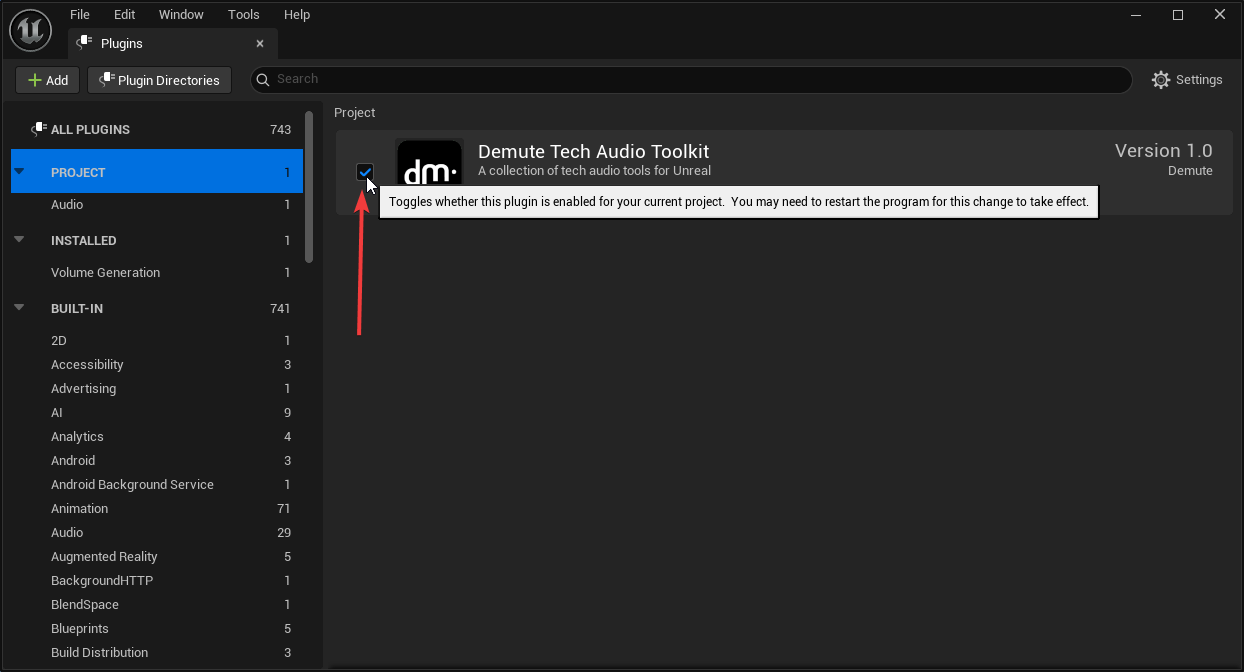
To install the plugin in your projects, download the latest release and unzip the folder in your project’s Plugins folder. The plugin should be enabled by default but if you want to disable it you can do so in your project’s Plugins window.
With the plugin installed, you should see the Demute icon on your top toolbar (see image). Click on this icon to open up the Demute Tech Audio Toolkit.
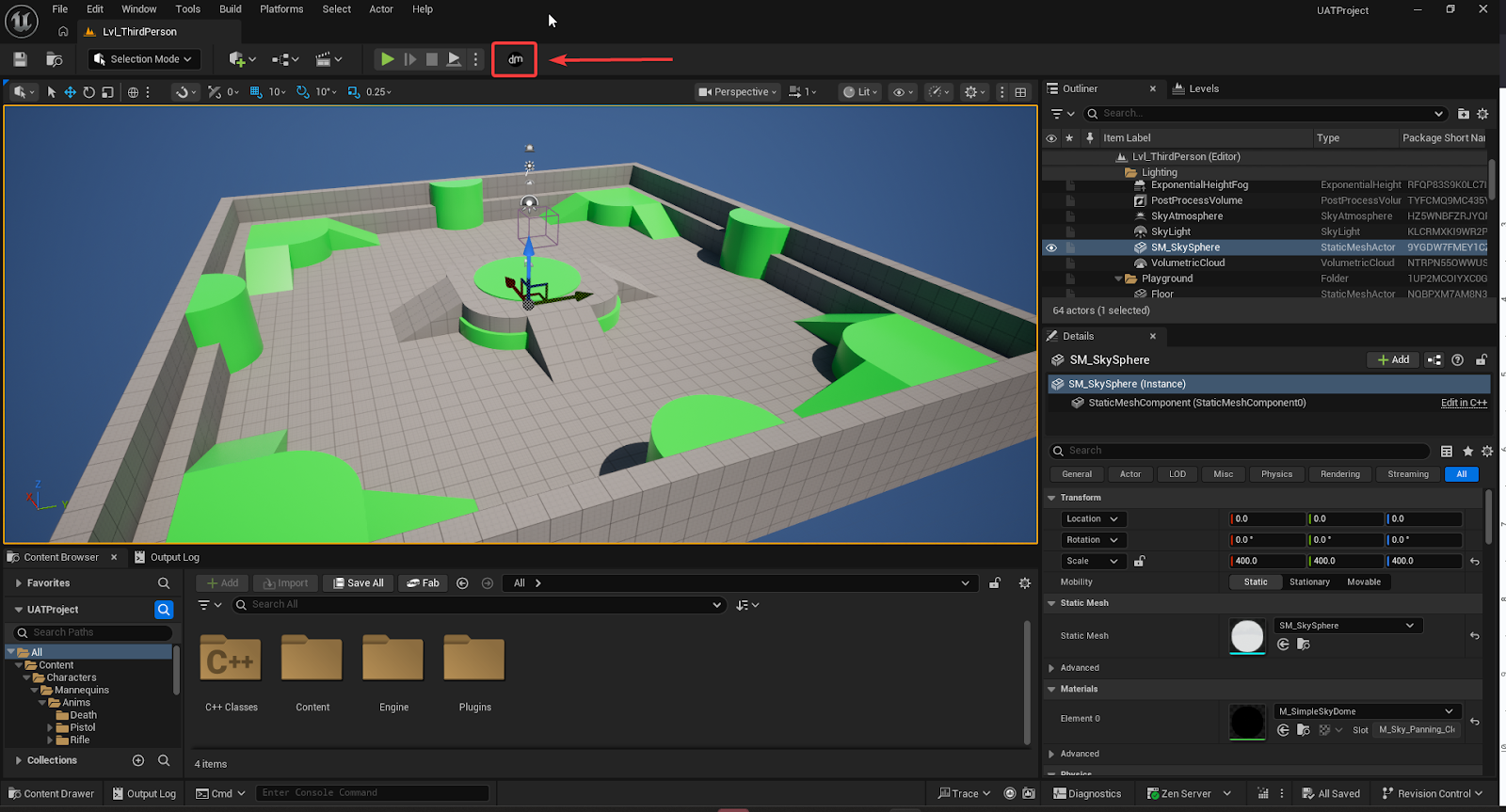
The toolkit has buttons for each tool and its corresponding documentation. To know how to use each of these tools, please refer to its documentation.
If you don’t see the icon in your toolbar, check in your project plugins that the Demute Tech Audio Toolkit is enabled.
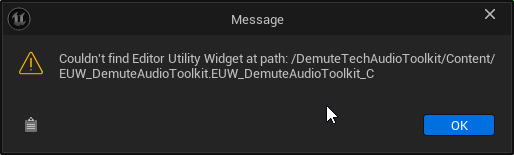
If you get the following error when clicking on the toolbar button : “Couldn't find Editor Utility Widget at path: /DemuteTechAudioToolkit/Content/EUW_DemuteAudioToolkit.EUW_DemuteAudioToolkit_C”
Check that the contents folder of the plugin was correctly imported by Unreal. You can do so by turning on Plugin content in the content browser and navigating to “Plugins/DemuteTechAudioToolkit”.
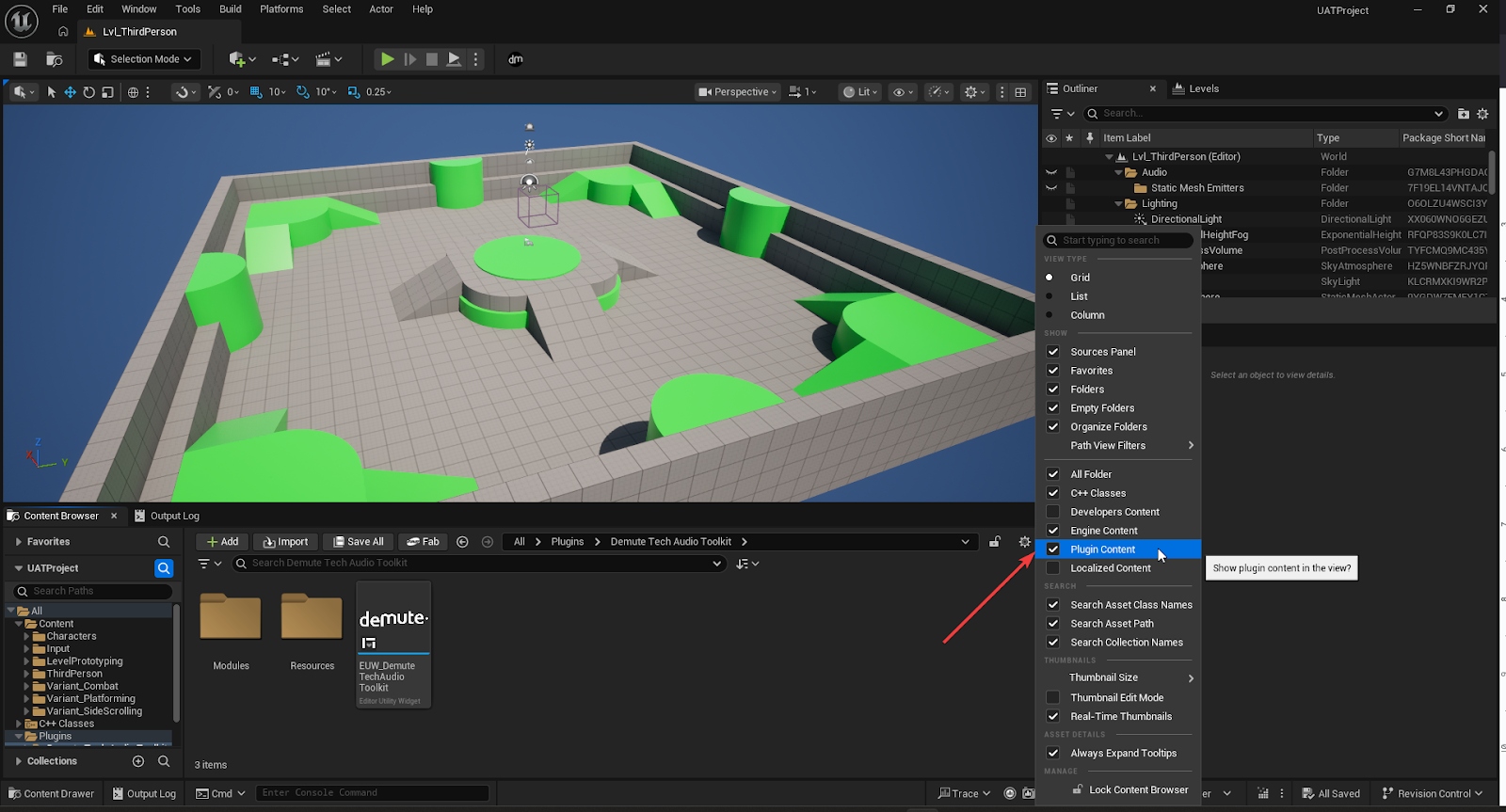
If the folder doesn’t contain an asset called EUW_DemuteTechAudioToolkit you might need to reimport the content or do a migration operation.
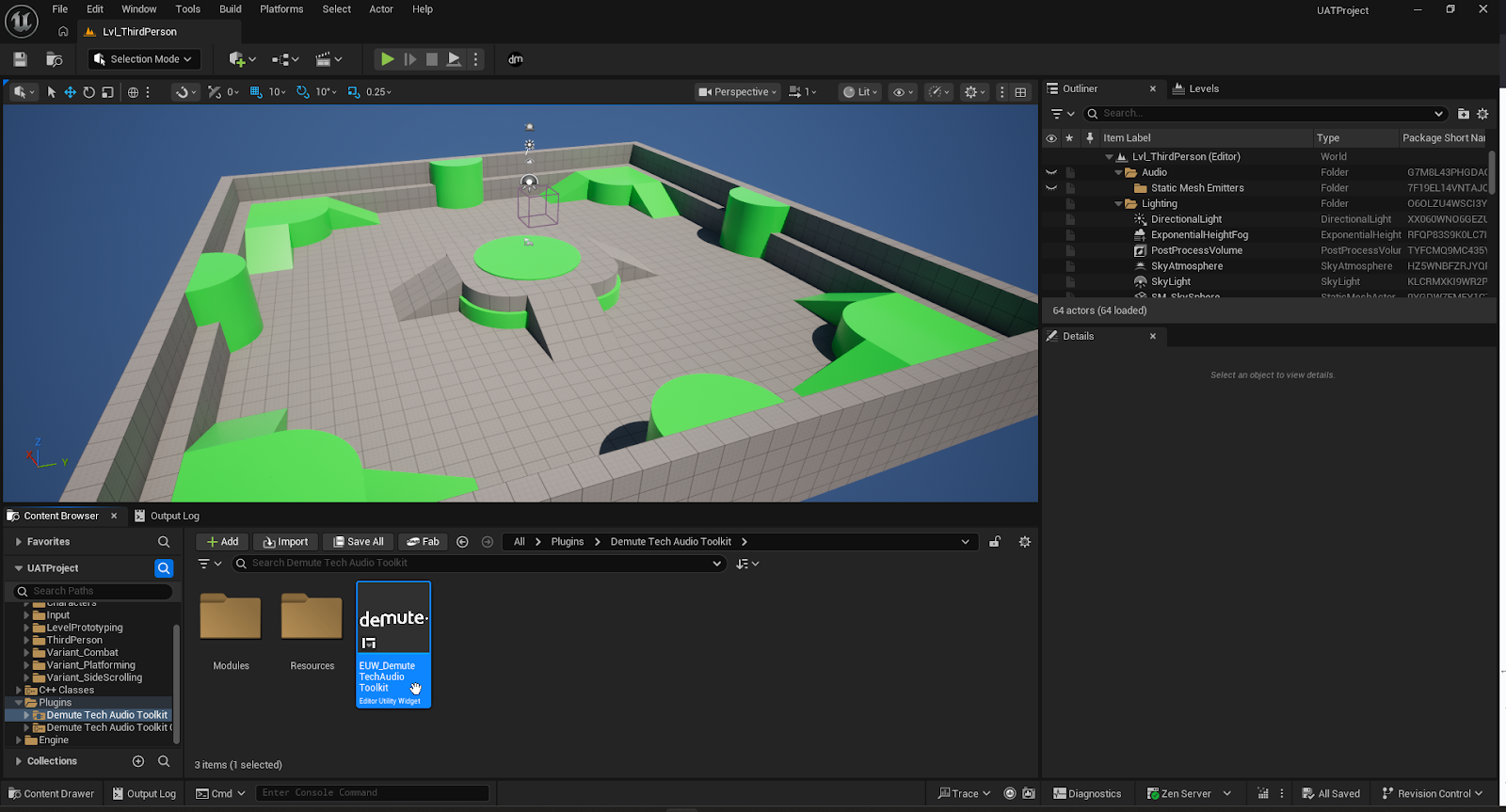
If you want to use the plugin in another engine version, because it is content-heavy, you will probably need to migrate it for the assets to be imported correctly. This is especially true if you are using older versions of Unreal.
To do so, download any minor version of Unreal 5.7 through the Epic Games Launcher, create a new empty C++ project and import the plugin in this new empty project. If you enable the Plugin Content in the content browser, you should be able to find the folderPlugins/DemuteTechAudioToolkit.
Right click on the Demute Tech Audio Toolkit and select Migrate…
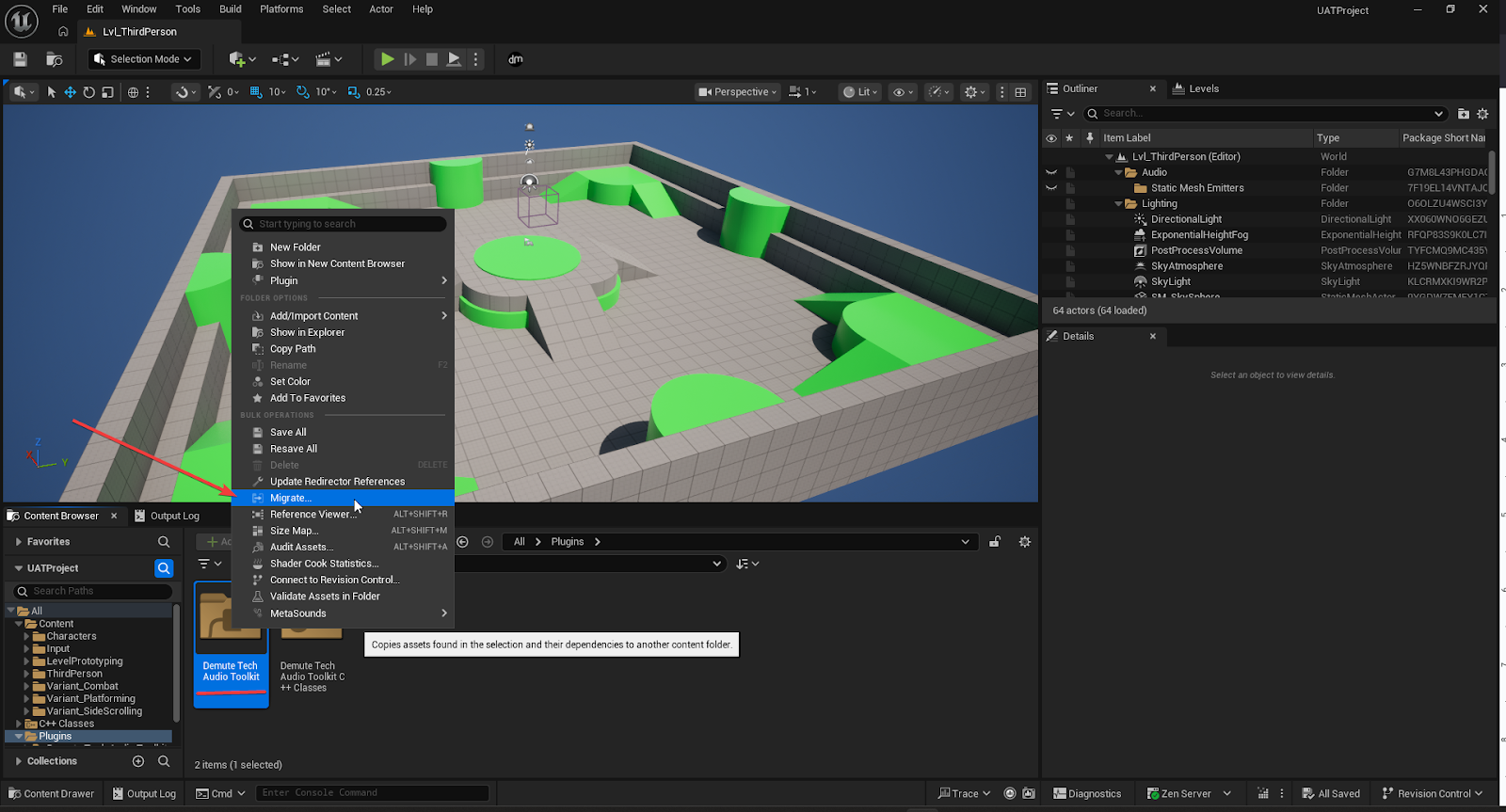
This will open up a dialog where you can choose which assets to migrate. By default, the correct assets are selected and you can click OK.
This will open a file browser window to choose which content folder to migrate the assets into. Navigate to the Plugins/DemuteTechAudioToolkit/Content that is in your target project folder. After a quick loading bar, the assets should have been migrated. If you open your target project, you should now be able to see the assets of the plugin.
1.0 - Initial version