

Voice-Over Priority System

Voice-Over Priority System is an Unreal Engine 5.7 subsystem designed to centralize and streamline the management of voice-over audio using a double priority system and queueing.

Introduction

The Voice Manager Subsystem is a game instance subsystem for managing voice-over playback in Unreal Engine 5.7. It provides sophisticated control over VO playback through a double priority system, automatic queueing, and intelligent interruption handling.

The Voice Manager is part of the Demute Tech Audio Toolkit and supports two audio backends:

  • FMOD Studio Backend - Uses FMOD's event system with programmer sounds and localization
  • Native Audio Backend - Uses Unreal Engine's built-in audio system with USoundWave assets

Key Features

  • Dual Backend Support: Choose between FMOD Studio or Native UE Audio based on your project needs
  • Dual-Priority System: Automatically manages VO playback order based on separate priorities for triggering and during playback
  • Run Custom Logic: Delegates avilable to run logic on specific VO start and finish
  • 3D Spatialization: Support for 2D audio, 3D at location, and 3D attached to components
  • Cooldown & No-Repeat Management: Prevent VOs from playing too frequently
  • Blueprint-Friendly: Full Blueprint support for all features

Setup

Installing the Plugin

Link to the toolkit installation instructions

Project Settings

Access Voice Over Manager settings at Edit → Project Settings → Plugins → Voice Over Manager.

image

Make sure to correctly set your audio backend depending on whether you are using Native Unreal audio, or Fmod.

Settings Reference

AudioBackend (enum)

  • FMOD: Use FMOD Studio audio system (requires FMOD Studio Plugin)
  • Native: Use Unreal Engine's native audio system (no external dependencies)
  • This determines which audio backend is loaded at runtime
  • Important: Backend-specific data tables must match the selected backend

VoiceOverDataTables (array of Data Table references)

  • List of VO data tables to load automatically when the game instance starts
  • These tables remain loaded for the entire game session and cannot be unloaded at runtime
  • Use this for core VOs that are always needed
  • Important: Tables must match your selected AudioBackend (VOInfoTableRow_FMOD or VOInfoTableRow_Native)

VODelayTime (float, default: 1.0)

  • Delay in seconds between consecutive VO playbacks
  • Prevents VOs from playing back-to-back without pause
  • Is not used during interruptions but only during queued playback
  • Set to 0 for immediate playback after previous VO ends

VOAllowFinishTime (float, default: 1.0)

  • Maximum remaining time (in seconds) under which an interrupting VO will wait for the current line to finish
  • If the current VO has less than this amount of time remaining, the higher priority VO will wait instead of interrupting
  • Prevents jarring interruptions near the end of lines

Prerequisites and Backend Setup

FMOD Studio Backend

The FMOD backend requires the FMOD Studio Plugin for Unreal Engine.

IMPORTANT: For the Voice Manager to work with FMOD, your FMOD events must include a Programmer Sound instrument, and the sound bank must contain an Audio Table:

  1. Open FMOD Studio
  2. Create or Open Event: Open your voice-over event
  3. Add Programmer Sound:
    • Right-click in the event timeline → Add Instrument → Programmer Instrument
    • The programmer sound will play audio files based on localization keys provided by the Voice Manager
  4. Configure Event:
    • Set up 3D spatializer if needed (spatializer settings in FMOD Studio)
    • Add any additional effects (reverb, EQ, etc.)
    • Configure attenuation curves for distance-based volume
  5. Create Audio Table:
    • Right click the bank in which you've assigned your programmer instrument event and create a new audio table (this works better if it's not the master bank)
    • If your game's audio will be localised, create a localised table instead of a regular audio table
    • Browse the audio table to a folder where your audio files are located, it will automatically create the audio table keys
    • Change any of the keys if you wish, these are what will allow you to play your audio using our voice over system
  6. Build Banks: Build your FMOD banks and ensure they're loaded in Unreal
image

Native Audio Backend

No external prerequisites required! The Native backend uses Unreal Engine's built-in audio system.

Asset Requirements

  • USoundWave Assets: Use standard Unreal sound wave assets
  • No Special Setup: Sound waves work out-of-the-box with the Voice Manager
  • Standard UE Attenuation: Configure spatialization and attenuation using UE's sound attenuation settings

Creating Voice-Over Data

Voice-over data is all the information (such as each VO's priority) that the system requires to function.

Overview

Voice-Over data can be organized in two ways:

Data Tables (Recommended for most use cases)

  • Spreadsheet-like organization of related VOs
  • Support for runtime loading and unloading
  • Easy to manage large sets of VOs
  • Can be added to Project Settings for automatic loading
image

Data Assets (For special cases)

  • Standalone VO configurations
  • Direct Blueprint references
  • Good for one-off or procedural VO configuration
  • Used with PlayUnregisteredVO methods
image

Important: You must use backend-specific data structures:

  • FMOD Backend: Use VOInfoTableRow_FMOD and VOInfo_FMOD
  • Native Backend: Use VOInfoTableRow_Native and VOInfo_Native

For FMOD Backend

Creating and configuring voice-over data for the FMOD Studio backend.

Creating a VO Data Table (FMOD)

  1. Right-click in Content Browser → Miscellaneous → Data Table
  2. Select VOInfoTableRow_FMOD as the row structure
  3. Name your data table (e.g., DT_VoiceOvers_FMOD_Combat)
  4. If you would like for this table to automatically be loaded at runtime, you can add it to the VoiceOverDataTables array in the project settings

FMOD-Specific Row Properties

Row Name (FName)

  • Unique identifier for this VO (needs to be unique between all tables)
  • Used when calling PlayRegisteredVO2D, PlayRegisteredVOAtLocation, PlayRegisteredVOAttached
  • Also serves as fallback VOID (Voice Over ID) if no localization keys are provided
  • Important: This cannot be changed in the Row Editor window and must be done by double-clicking on the Row Name column for the corresponding row
  • Example: Player_Damage_Heavy, Boss_Taunt_01

FMODEvent (UFMODEvent reference)

  • Reference to the FMOD Event asset
  • Must contain a Programmer Sound instrument
  • The programmer sound will play the audio file corresponding to the selected localization key
  • Configure 3D spatialization and attenuation in FMOD Studio for the event as well as additional processing for the voice if required

LocalizationKeys (Array of FString)

  • Array of localization key strings that FMOD will use to load audio files
  • If multiple keys are provided, one is selected randomly each time
  • Works with NoRepeats to avoid repetition
  • If empty, the Row Name (VOID) is used as the localization key
  • Examples: "VO_Player_Damage_01", "VO_Boss_Taunt_Variant_A"

Creating a VOInfo Data Asset (FMOD)

For use with PlayUnregisteredVO methods, you can create standalone VOInfo Data Assets instead of using data tables.

Steps to Create:

  1. Right-click in Content Browser → Miscellaneous → Data Asset
  2. Select VOInfo_FMOD as the data asset class
  3. Name your data asset (e.g., VO_FMOD_Special_Event)

Configuring Properties:

VOInfo_FMOD Data Assets have the same properties as data table rows:

  • FMODEvent - UFMODEvent reference (must have programmer sound)
  • LocalizationKeys - Array of localization key strings
  • Plus all common properties (see Common Properties section below)

For Native Backend

Creating and configuring voice-over data for the Native UE Audio backend.

Creating a VO Data Table (Native)

  1. Right-click in Content Browser → Miscellaneous → Data Table
  2. Select VOInfoTableRow_Native as the row structure
  3. Name your data table (e.g., DT_VoiceOvers_Native_Combat)
  4. If you would like for this table to automatically be loaded at runtime, you can add it to the VoiceOverDataTables array in the project settings

Native-Specific Row Properties

Row Name (FName)

  • Unique identifier for this VO (needs to be unique between all tables)
  • Used when calling PlayRegisteredVO2D, PlayRegisteredVOAtLocation, PlayRegisteredVOAttached
  • Important: This cannot be changed in the Row Editor window and must be done by double-clicking on the Row Name column for the corresponding row
  • Example: Player_Damage_Heavy, Boss_Taunt_01

SoundWaves (Array of USoundWave references)

  • Array of sound wave assets that can play for this VO
  • If multiple sound waves are provided, one is selected randomly each time
  • Works with NoRepeats to avoid repetition
  • Must contain at least one valid USoundWave
  • Examples: SW_Player_Damage_01, SW_Boss_Taunt_Variant_A

Creating a VOInfo Data Asset (Native)

For use with PlayUnregisteredVO methods, you can create standalone VOInfo Data Assets instead of using data tables.

Steps to Create:

  1. Right-click in Content Browser → Miscellaneous → Data Asset
  2. Select VOInfo_Native as the data asset class
  3. Name your data asset (e.g., VO_Native_Special_Event)

Configuring Properties:

VOInfo_Native Data Assets have the same properties as data table rows:

  • SoundWaves - Array of USoundWave references
  • Plus all common properties (see Common Properties section below)

Common Properties

The following properties are available in both FMOD and Native backends and work identically.

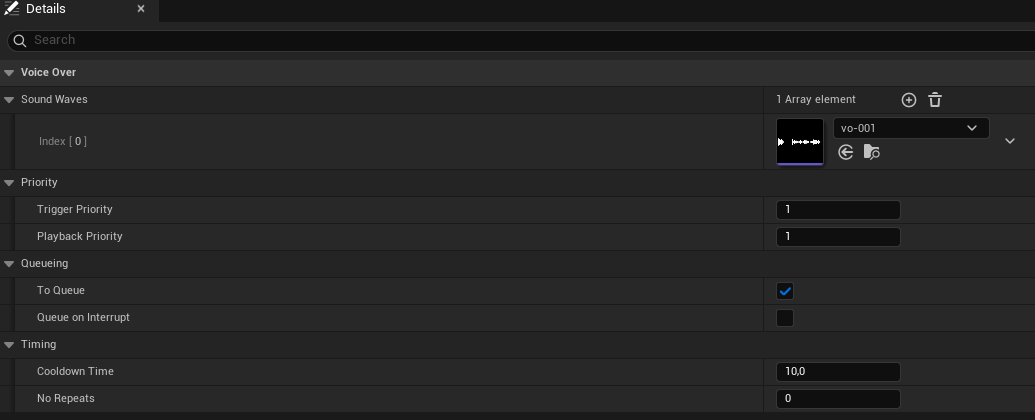
TriggerPriority (int32, default: 0)

  • Priority used when attempting to play this VO
  • Compared against the PlaybackPriority of currently playing VOs
  • Higher values can interrupt lower priority VOs

PlaybackPriority (int32, default: 0)

  • Priority used while this VO is actively playing
  • Determines resistance to being interrupted
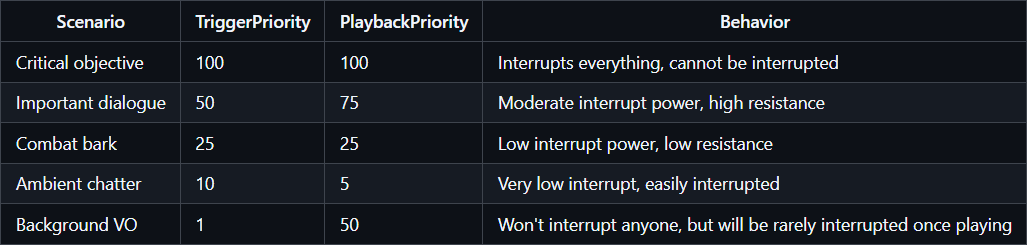
  • Can be different from TriggerPriority (e.g., low trigger but high playback = won't interrupt anything but won't be interrupted)

bToQueue (bool, default: false)

  • If true, this VO will be queued when it cannot play immediately (due to lower priority)
  • If false, the VO is discarded when blocked by higher priority playback
  • Useful for non-critical VOs that should still play eventually

bQueueOnInterrupt (bool, default: false)

  • If true, this VO will be re-queued if interrupted by a higher priority VO
  • If false, interrupted VOs are lost
  • Useful for important lines that should complete even if delayed

CooldownTime (float, default: 0.0)

  • Minimum time in seconds before this VO can be played again
  • Prevents spam when the same VO is triggered repeatedly
  • Cooldown starts when the VO begins playing

NoRepeats (int32, default: 0)

  • Number of recently used variations to avoid when randomly selecting
  • FMOD: Applies to LocalizationKeys array
  • Native: Applies to SoundWaves array
  • Must be less than the total number of variations available
  • Example: If you have 5 variations and NoRepeats=2, the last 2 used variations won't be selected
  • Set to 0 to allow immediate repeats

VOTags (Gameplay Tag Container, optional)

  • Gameplay tags for organizing and filtering VOs
  • Not currently used by the subsystem but available for your own systems
  • Example: VO.Combat.Death, VO.UI.ButtonClick

DisplayName (Text, optional)

  • Human-readable description for editor organization
  • Not used at runtime, purely for documentation in the data table or logging

When to Use VOInfo Assets vs Data Tables

Use Data Tables when:

Use Data Tables when:

  • You want to organize VOs in a spreadsheet-like format
  • You need runtime loading/unloading of VO groups
  • You have many related VOs (combat barks, UI sounds, etc.)

Use VOInfo Data Assets when:

  • You have a one-off VO that doesn't fit into existing tables
  • You need direct Blueprint references to specific VOs
  • You're creating procedurally configured VOs

Using the Subsystem

Getting the Subsystem

In Blueprint: Use Get Voice Over Manager Subsystem node

getsubsystem

In C++:

#include "VoiceOverManagerSubsystem.h"

UVoiceOverManagerSubsystem* VOSubsystem =
    GetGameInstance()->GetSubsystem<UVoiceOverManagerSubsystem>();

Playing Voice-Overs

The Voice Manager provides a consistent API for playing voice-overs regardless of which backend you're using. All play methods work identically for both FMOD and Native backends.

2D Audio (Non-Spatialized)

PlayRegisteredVO2D

Plays a VO by its Row Name from a loaded data table in 2D (non-spatialized).

Parameters:

  • ID (FName): The Row Name of the VO in your data table

Returns: UVOPlaybackHandle* - Handle for tracking this playback (null if VO ID not found in data tables; valid handle with Rejected state if on cooldown)

Blueprint Example:
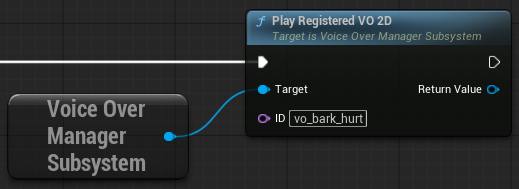
image

C++ Example:

UVOPlaybackHandle* Handle = VOSubsystem->PlayRegisteredVO2D(FName("Player_Damage_Heavy"));

Backend Notes:

  • FMOD: The FMOD event must not have a spatializer to work correctly in 2D mode
  • Native: Plays as non-spatialized audio using UAudioComponent

PlayUnregisteredVO2D

Plays a VOInfo Data Asset directly without using data tables, in 2D.

Parameters:

  • VOInfo (UVOInfo*): A VOInfo_FMOD or VOInfo_Native Data Asset reference

Returns: UVOPlaybackHandle* - Handle for tracking this playback (null if VOInfo parameter is null; valid handle with Rejected state if on cooldown)

Backend Notes:

  • FMOD: Pass a VOInfo_FMOD asset; event must not have a spatializer
  • Native: Pass a VOInfo_Native asset

3D Audio at Fixed Location

PlayRegisteredVOAtLocation

Plays a VO at a specific world location with 3D spatialization.

Parameters:

  • ID (FName): The Row Name of the VO in your data table
  • Location (FVector): World location where the sound should play

Returns: UVOPlaybackHandle* - Handle for tracking this playback (null if VO ID not found in data tables; valid handle with Rejected state if on cooldown)

Blueprint Example:

image

C++ Example:

UVOPlaybackHandle* Handle = VOSubsystem->PlayRegisteredVOAtLocation(
    FName("Enemy_Death_Scream"),
    EnemyActor->GetActorLocation()
);

Backend Notes:

  • FMOD: Configure 3D spatialization and attenuation in FMOD Studio for the event
  • Native: Uses UE's sound attenuation settings on the sound wave

PlayUnregisteredVOAtLocation

Plays a VOInfo Data Asset at a specific world location.

Parameters:

  • VOInfo (UVOInfo*): A VOInfo_FMOD or VOInfo_Native Data Asset reference
  • Location (FVector): World location where the sound should play

Returns: UVOPlaybackHandle* - Handle for tracking this playback (null if VOInfo parameter is null; valid handle with Rejected state if on cooldown)

3D Audio Attached to Component

PlayRegisteredVOAttached

Plays a VO attached to a scene component, following its movement.

Parameters:

  • ID (FName): The Row Name of the VO in your data table
  • AttachComponent (USceneComponent*): Component to attach the audio to

Returns: UVOPlaybackHandle* - Handle for tracking this playback (null if VO ID not found in data tables; valid handle with Rejected state if on cooldown)

Blueprint Example:
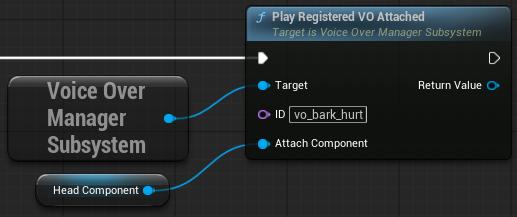
image

C++ Example:

UVOPlaybackHandle* Handle = VOSubsystem->PlayRegisteredVOAttached(
    FName("Character_Breathing"),
    HeadComponent
);

Backend Notes:

  • FMOD: FMOD audio component is attached and follows the component's transform
  • Native: UAudioComponent is attached and follows the component's transform

PlayUnregisteredVOAttached

Plays a VOInfo Data Asset attached to a scene component.

Parameters:

  • VOInfo (UVOInfo*): A VOInfo_FMOD or VOInfo_Native Data Asset reference
  • AttachComponent (USceneComponent*): Component to attach the audio to

Returns: UVOPlaybackHandle* - Handle for tracking this playback (null if VOInfo parameter is null; valid handle with Rejected state if on cooldown)

VO Playback Handle

All play methods return a UVOPlaybackHandle* object that allows you to track and monitor the playback of a specific VO instance.

What is a VOPlaybackHandle?

A VOPlaybackHandle is a Blueprint-friendly object that provides:

  • Delegates for playback events (OnVOStarted, OnVOFinished)
  • Real-time progress queries (current time, duration, remaining time, progress percentage)
  • State checking (IsPlaying, IsQueued, IsFinished, WasRejected)
  • Metadata access (spatialization mode, location, attached component)

The VOPlaybackHandle works identically for both FMOD and Native backends.

All handle methods are available in both c++ and blueprints.

Return Value

When is a null handle returned?

  • PlayRegisteredVO* methods: Returns null only if the VO ID is not found in any loaded data tables
  • PlayUnregisteredVO* methods: Returns null only if you pass a null VOInfo parameter

Should only happen if there is a problem with the setup.

When is a valid handle with Rejected state returned?

  • VO is on cooldown
  • VO cannot play due to priority and bToQueue is false

Playback Events

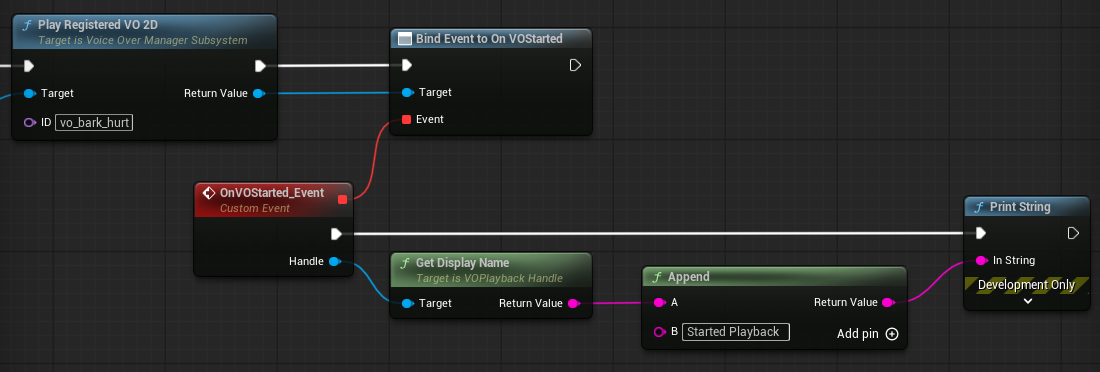
Subscribe to delegates to be notified when playback starts or finishes:

Blueprint: Use the Assign On nodes to get a delegate to when the vo starts playing, or when it finishes playing.
image

C++:

UVOPlaybackHandle* Handle = VOSubsystem->PlayRegisteredVO2D(FName("MyVO"));
if (Handle)
{
    Handle->OnVOStarted.AddDynamic(this, &UMyClass::HandleVOStarted);
    Handle->OnVOFinished.AddDynamic(this, &UMyClass::HandleVOFinished);
}

// Delegate handler functions
void UMyClass::HandleVOStarted(UVOPlaybackHandle* Handle)
{
    UE_LOG(LogTemp, Log, TEXT("VO Started: %s"), *Handle->GetDisplayName());
}

void UMyClass::HandleVOFinished(UVOPlaybackHandle* Handle)
{
    UE_LOG(LogTemp, Log, TEXT("VO Finished: %s"), *Handle->GetDisplayName());
}

Progress Tracking

Available Methods:

  • float GetCurrentPlaytime - current playback time in seconds
  • float GetTotalDuration - total duration of file in seconds
  • float GetTimeRemaining - amount of play time remaining in seconds
  • float GetPlaybackProgress - 0 to 1, with 0 being unstarted and 1 being finished

C++ Example:

if (Handle && Handle->IsPlaying())
{
    float Progress = Handle->GetPlaybackProgress(); // 0.0 to 1.0
    float Remaining = Handle->GetTimeRemaining(); // Seconds

    UE_LOG(LogTemp, Log, TEXT("VO Progress: %.1f%% (%.1fs remaining)"),
        Progress * 100.0f, Remaining);
}

State Checking

Available Methods:

  • bool IsPlaying() - True if currently playing audio
  • bool IsQueued() - True if queued and waiting to play
  • bool IsFinished() - True if playback completed or was interrupted
  • bool WasRejected() - True if VO was rejected (cooldown, invalid, etc.)
  • EVOPlaybackState GetPlaybackState() - Returns current state enum (Rejected, Queued, Playing, Finished)

State Lifecycle:

Null Handle (ID not found, null VOInfo)

Valid Handle:
    → Rejected (on cooldown / lower priority & not set to queue)
    → Queued → Playing → Finished (completed)
                 ↘ Finished (interrupted)
    → Playing → Finished (if played immediately)

Spatialization Information

Available Methods:

  • EVOSpatializationMode GetSpatializationMode() - Returns VO2D, VOLocation, or VOAttached (enum)
  • FVector GetPlaybackLocation() - World location (only valid when mode is VOLocation)
  • USceneComponent* GetAttachedComponent() - Attached component (only valid when mode is VOAttached)
  • UVOInfoBase* GetVOInfo() - The VOInfo being played (even if using registered vo, will return a VOInfo that represents the row information)
  • FString GetDisplayName() - Display name for debugging

Runtime Data Table Management

All these methods are available to the subsystem.

LoadDataTable

Loads a data table at runtime and assigns it a unique ID.

Parameters:

  • TableID (FName): Unique identifier for this table
  • DataTable (UDataTable*): The data table to load

Returns: bool - True if loaded successfully

Notes:

  • TableID must be unique (cannot duplicate existing IDs)
  • FMOD Backend: Data table must use VOInfoTableRow_FMOD structure
  • Native Backend: Data table must use VOInfoTableRow_Native structure
  • Use this for level-specific or context-specific VOs
  • VOs become immediately available for playback after loading

UnloadDataTable

Unloads a dynamically loaded data table.

Parameters:

  • TableID (FName): The ID used when loading the table

Returns: bool - True if unloaded successfully

Notes:

  • Cannot unload tables loaded from Project Settings (only dynamically loaded tables)
  • Automatically removes all associated VOInfo instances from memory
  • Clears any queued VOs from this table
  • Currently playing VO from this table will complete normally

IsDataTableLoaded

Checks if a data table with the given ID is currently loaded.

Parameters:

  • TableID (FName): The ID to check

Returns: bool - True if the table is loaded

Playback Control

All these methods are available to the subsystem.

IsPlaying

Checks if any VO is currently playing.

Returns: bool - True if audio is playing

StopPlayback

Immediately stops the currently playing VO.

Returns: bool - True if playback was stopped successfully

Notes:

  • Does not trigger bQueueOnInterrupt behavior
  • Next queued VO will play after VODelayTime
  • FMOD Backend: FMOD audio component is stopped and destroyed immediately
  • Native Backend: Audio component is stopped and destroyed immediately

ClearQueue

Empties the entire VO queue without affecting current playback.

Returns: bool - True if queue was cleared successfully

Understanding Priorities

The Voice Manager uses a double priority system to provide fine-grained control over interruption and queueing. This system works identically for both FMOD and Native backends.

  • Trigger Priority: Used when a VO attempts to play. Compared against the PlaybackPriority of the currently playing VO.
  • Playback Priority: Used while a VO is actively playing. Determines resistance to being interrupted by incoming VOs.

Logic:

  • If TriggerPriority > PlaybackPriority of current VO:
    • Interrupt (if remaining time > VOAllowFinishTime)
      • Queue Interrupted VO (if that VO has bQueueOnInterrupt set to true)
    • Wait as PendingVO (if remaining time ≤ VOAllowFinishTime)
  • If TriggerPriority ≤ PlaybackPriority of current VO:
    • Queue (if bToQueue is true)
    • Discard (if bToQueue is false)

Priority Examples

Queue Behavior

The queue uses priority-based FIFO ordering:

  1. Higher priority VOs in the queue are dequeued first
  2. VOs of equal priority follow FIFO (first-in, first-out) order
  3. Queued VOs are checked for cooldown when dequeued (discarded if on cooldown)
  4. Delay between playbacks is controlled by VODelayTime project setting

Example Queue Processing:

Queue State:
    [Priority 50] VO_A
    [Priority 75] VO_B
    [Priority 50] VO_C
    [Priority 25] VO_D

Playback Order:
    1. VO_B (priority 75)
    2. VO_A (priority 50, added before VO_C)
    3. VO_C (priority 50, added after VO_A)
    4. VO_D (priority 25)

C++ API Quick Reference

Playback Methods

// 2D Audio (Non-Spatialized)
UVOPlaybackHandle* PlayRegisteredVO2D(FName ID);
UVOPlaybackHandle* PlayUnregisteredVO2D(UVOInfo* VOInfo);

// 3D at Location (Spatialized at fixed position)
UVOPlaybackHandle* PlayRegisteredVOAtLocation(FName ID, FVector Location);
UVOPlaybackHandle* PlayUnregisteredVOAtLocation(UVOInfo* VOInfo, FVector Location);

// 3D Attached (Spatialized and follows component)
UVOPlaybackHandle* PlayRegisteredVOAttached(FName ID, USceneComponent* AttachComponent);
UVOPlaybackHandle* PlayUnregisteredVOAttached(UVOInfo* VOInfo, USceneComponent* AttachComponent);

// Return values:
// - Null: VO ID not found (Registered methods) or VOInfo param was null (Unregistered methods)
// - Valid handle with Rejected state: On cooldown or rejected due to priority
// - Valid handle with Queued state: Queued to play later
// - Valid handle with Playing state: Started playing immediately

Data Table Management

// Load a data table at runtime
bool LoadDataTable(FName TableID, UDataTable* DataTable);

// Unload a dynamically loaded data table
bool UnloadDataTable(FName TableID);

// Check if a table is loaded
bool IsDataTableLoaded(FName TableID) const;

Playback Control

// Check if audio is playing
bool IsPlaying() const;

// Stop current playback
bool StopPlayback();

// Clear the queue
bool ClearQueue();


Support

For additional support you can contact us.
You can also join our public discord server at: https://discord.gg/srNFquSUtu