

ReaHaptic

ReaHaptic: A Reaper package for creating, editing, and testing mobile haptic files. Connect your iOS or Android device and feel vibrations in real time.
Haptic Tracks

REAHAPTIC is a package for Reaper that contains a collection of scripts that allows the creation, editing, exporting, and testing of haptic files all inside Reaper (currently focused on haptics for mobile) and comes with a mobile testing app called the Reahaptic Receiver that you can connect to reaper an immediately test your haptics.

We wanted to make haptic creation and testing for games as a sound designer as easy and efficient as possible. These were the goals for this project:


  • Immediate feedback: When creating a haptic file, we want to be able to test it immediately without having to export a file, on both mobile and gamepads.
  • Sound Designer workflow: A comfortable haptics creation workflow that plugs in seamlessly with your sound design workflow. And you are able to design your haptics with the context of a video track and audio. And immediately test it on your target device.
  • Format agnostic: We want to support as many haptic formats as possible so you are not tied to a specific implementation/platform, and we could also serve as a conversion tool.

‍

‍

Video Tutorial

Video Title

‍

‍

Installing Reahaptic

Requirements

  • Reaper: Package was made for reaper 7.22+ but should work for older versions as well.
  • Reapack : Used to import the package in reaper.
  • Python: Some of the scripts are in python, so make sure your reaper has a recognised python installation. You can check this here: options >preferences >Plug-ins >ReaScript
Haptic Tracks
  • ReaImGui: Used for the menu’s, Is included in the ReaTeam Extensions Package that you can install with Reapack. To check if it is installed, you should have a ReaImGui Tab under the ReaScript tab in the preferences: options >preferences >Plug-ins >ReaImGui

Reapack

To install Reapack follow these steps:

  1. Download Reapack for your platform here(also the user Guide): Reapack Download
  2. From REAPER: Options > Show REAPER resource path in explorer/finder
  3. Put the downloaded file in the UserPlugins subdirectory
  4. Restart REAPER. Done!

If you have Reapack installed go to Extensions->Reapack->Import Repositories paste the following link there and press Ok. https://raw.githubusercontent.com/DemuteStudio/ReaHaptic/refs/heads/main/index.xml Then in Extensions->Reapack->Manage repositories you should see ReahapticScripts double click it and then press Install/update ReahapticScripts and choose Install all packages in this repository. It should Install without any errors.

To install ReaImGui, find ReaTeam Extensions in Manage repositories. Then if you only want ReaImGui Choose Install individual packages in this repository and find ReaImGui.

Action List

These Actions should appear in your action list

  1. ReaHaptic_Settings.lua
  2. ReaHaptic_CreateTracks.py
  3. ReaHaptic_InsertEmptyHaptic.py
  4. ReaHaptic_ItemController.lua
  5. ReaHaptic_InsertEmphasis.py
  6. ReaHaptic_DeleteSelectedHaptics.lua
  7. ReaHaptic_RenameItems.lua
  8. ReaHaptic_Export.lua
  9. ReaHaptic_Importer.py
  10. ReaHaptic_PreviewSender.lua
  11. ReaHaptic_LiveReaperLink.lua
  12. ReaHaptic_Exporter.py
  13. ReaHaptic_AudioToHaptic.lua

If you do not have all the actions check if you have python installed. If you didn't you will need to reinstall the package.

Importing Toolbar

To easily use these actions I have included a toolbar that already contains all the actions required for haptic editing in reaper

Haptic Tracks

You can load the toolbar by right clicking on your toolbar and select customize toolbar, then click import on the top right and go to the reaper recourse folder: …\AppData\Roaming\REAPER If you don’t know where your resource folder is go to Options >Show Reaper resource path in explorer/finder. there go to Data\MenuSets and select ReaperHapticsToolbar.ReaperMenu

‍

‍

Creating/Editing Haptics in ReaHaptic

Haptics Workflow Scripts for Reaper

We created a collection of reaper scripts that allow a workflow for haptic creation in reaper.

  1. ReaHaptic_Settings.lua: Settings to change the IP and port of the OSC sends and other settings.
  2. ReaHaptic_CreateTracks.py: Creates the tree tracks with the envelopes and correct names. When you need to start creating/editing haptics in a new project this is the first thing you need to do.
  3. ReaHaptic_InsertEmptyHaptic.lua: Allows you to to create the empty media items that represent the haptics and places envelope points at the beginning of and end of the haptic item, and asks you for a name for the haptic.
  4. HapticsItemController.lua: this is a Toggleable script, if you enable it you can move and resize all the haptic items on each track together by just editing one of them. Make sure that “move envelope points with media items” is also toggled on when moving haptic items.
  5. ReaHaptic_InsertEmphasis.py: Inserts an Emphasis automation item at your cursor location
  6. ReaHaptic_DeleteSelectedHaptics.lua: Deleted all selected haptic Items including the automation.
  7. ReaHaptic_RenameItems.lua: Opens a window that allows you to rename your selected haptic items.
  8. ReaHaptic_HapticImporter.lua: will import haptic items at your cursor location, it will open the file browser and you can select .haps or .haptic files and they will be imported into Reaper.
  9. ReaHaptic_HapticExport.lua: Will export selected haptic items, it will prompt you for the filetype and export path.
  10. ReaHaptic_PreviewSender.lua: will send the currently selected haptic item to the Reahaptic receiver using OSC. Uses the Ip and port configured in ReaHaptic_Settings.lua.
  11. ReaHaptic_LiveReaperLink.lua: will continuously send haptic data to the receiver app when in playback, if connected properly the app haptics will play the haptics as the cursor comes across them with minimal latency.
  12. ReaHaptic_Exporter.py: this one is not important for users as it will be only called by other scripts.
  13. ReaHaptic_AudioToHaptic.lua: Creates a new haptic file based on the amplitude and frequency of the selected Audio item. Ypu can tweak parameters in ReaHaptic_Settings.lua

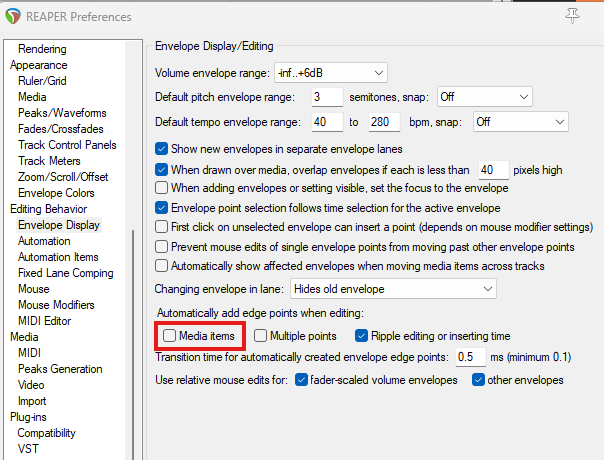
If it bothers you that when you move Empty Items the start point gets deleted you can turn off Preferences >Envelope Display >Automatically add edge points when editing >Toggle of Media Items
Haptic Tracks

Representation of Haptics in Reaper

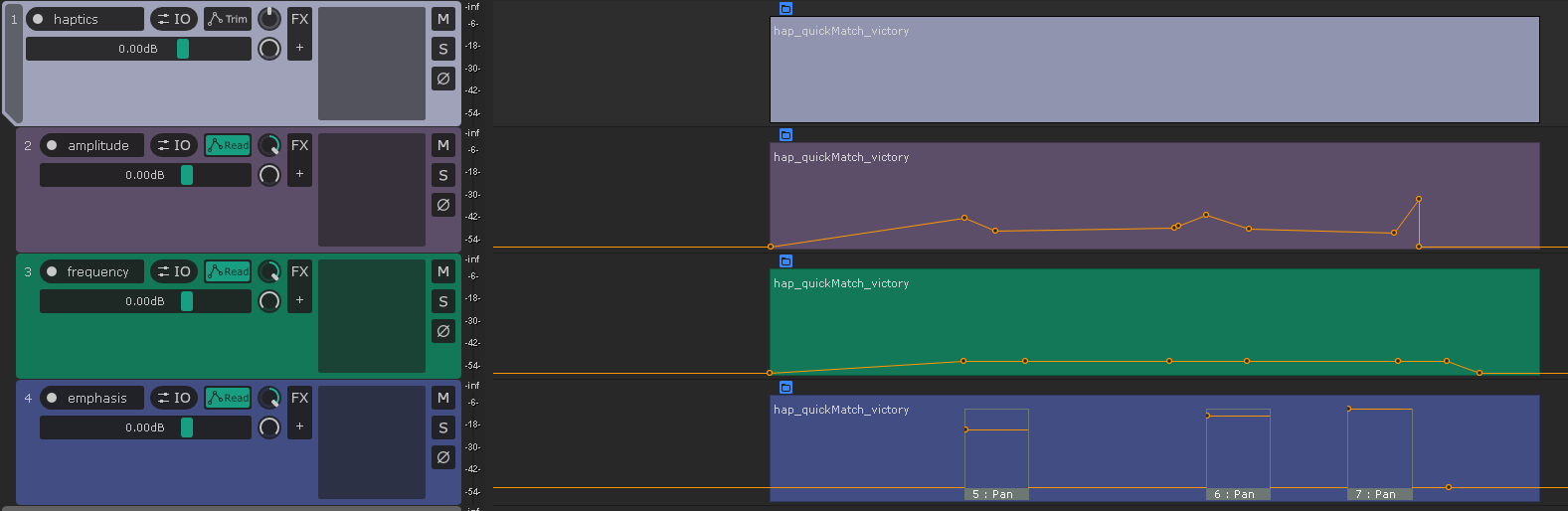
To visualise and allow the editing of haptics in Reaper we have 3 tracks that have an envelope that represent the haptic data. you can edit these envelopes by moving, adding or removing points.

Haptic Tracks

Amplitude: this is the strength of the haptic vibrations at a certain time.

  • frequency: the frequency of the haptic vibrations at a certain time. Not all devices support frequency control.
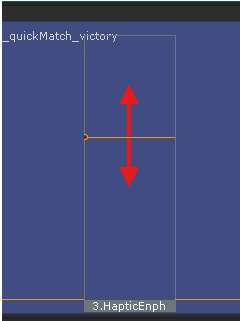
  • Emphasis: these are short haptic bursts that could also be made with the other 2 tracks but it makes the editing process a lot easier. We edit these with automation items, by changing the value you change the amplitude of the burst and by double clicking and changing the Bezier tension you can change the frequency of the burst.

Editing Envelopes

For the amplitude and frequency envelope we edit them the same way, when you import or create a new haptic you will get empty media items that represent the haptic, for each of these there will be automatically two points created at the beginning and end of the item, you should not edit these. Then you can place new points in between to create your amplitude and frequency curve.

For the emphasis envelope the workflow is a bit different. In this envelope normal points will be ignored and we only look at automation items. You can easily create a emphasis automation Item at the cursor location by clicking the ReaHaptic_InsertEmphasis.py action. Each Emphasis automation Item has two parameters that you can change:
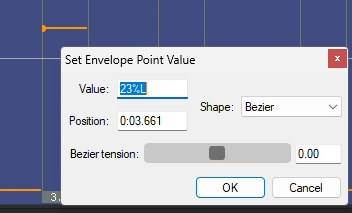
  1. Amplitude: you can edit this by changing the hight of the point in the automation item
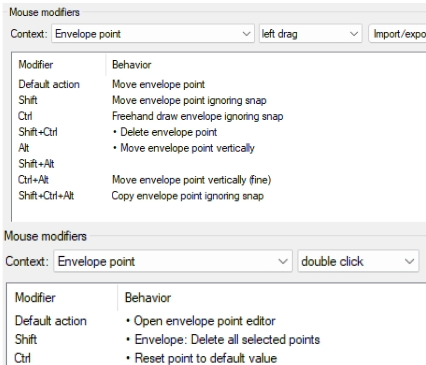
  2. Frequency: you can edit this by going into the envelope point editor of the point in the automation item(default should be ctrl double click on the point but you can change this in preferences->mouse modifiers->Envelope point) and then adjust the Bezier tension to change the frequency.
Haptic Tracks

Both the Amplitude and the Frequency value get remapped. Even though you can set a negative tension it will be remapped to to a value between 0 and 1. Same for the Amplitude it uses the pan envelope so its left and right but it will also be remapped, so every value you can set is valid.
Haptic Tracks

|

Haptic Tracks

These mouse modifier settings work for me.

‍

‍

Creating Haptics for Gamepads(WIP)

To create haptics for Gamepads you have to consider that they work a bit differently than mobile haptics and it can also differ from controller to controller. For example the xbox one controller has 2 motors, 1 for low frequency and 1 for high frequency. These motors only have amplitude modulation, no frequency modulation. So to translate our ampitude and frequency envelopes translate to this, we use the ampitude envelope to controll the amplitude of the low frequency motor and the frequency envelope to controll the high frequency motor.

‍

‍

Testing Haptics with ReahapticReceiver

This app allows you to instantly test haptics that you made in Reaper on your phone. By running the ReaHaptic_LiveReaperLink script and enabling listening on the app, you will feel the haptics play on your phone when in reaper the cursor passes a haptic file. You can also send files directly to the app from Reaper and load haptic files with video reference from the file browser.

Connect to Device (Android/iOS/Windows):

Install the ReahapticReceiver App on your phone (or run the build on Windows); to do this, check the iOS Installation or Android Installation sections. To be able to connect to your device, it needs to be on the same Wi-Fi network as your PC. Ensure your phone is not connected to a computer by USB to ensure you see the correct IP in the app.
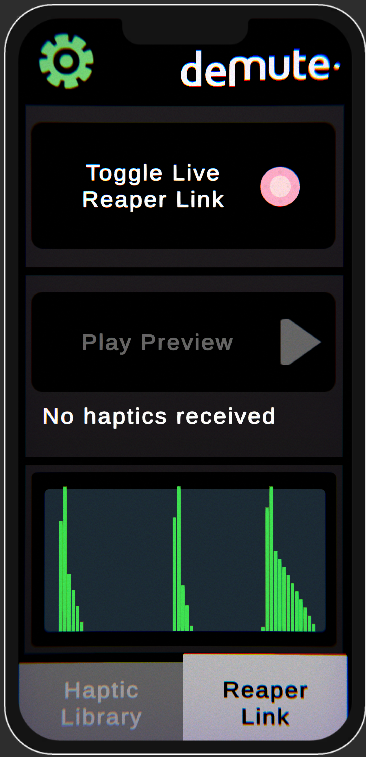
To test your haptics, there are 3 important actions:
  1. ReaHaptic_Settings.lua: Here you can set the IP and port of your target device. You can find the IP of your device in the ReahapticReceiver app by pressing the settings icon, in some cases it may not show the correct IP, in that case go to your phone wifi setting and find click on the conected wifi network and use the IP4. Normally you should not have to change the port, but if you do, make sure it is the same in the app and in Reaper.
  2. ReaHaptic_PreviewSender.lua: First, in the ReahapticReceiver app, you need to be in the Reaper link tab and make sure Toggle Live Reaper Link is not activated. Then in Reaper, select a haptic item and run the ReaHaptic_PreviewSender.lua action. If the message was sent and received correctly, the name of the haptic should appear at the bottom of the Reaper view; you can then press play received haptic.
  3. ReaHaptic_LiveReaperLink.lua: First, in the ReahapticReceiver app, you need to be in the Reaper view and make sure Toggle Live Reaper Link is activated (the light should turn bright red). Then in Reaper, activate the ReaHaptic_LiveReaperLink.lua action. Now, when you press play in Reaper, the red light in the app should turn green, and when the cursor moves over a haptic item, you should feel the haptic playing on your phone and the haptic envelopes should be visible in the visualizer.

‍

In the settings you can also switch wich haptic unity integration you want to use to play back the haptics.

load rendered haptic files:

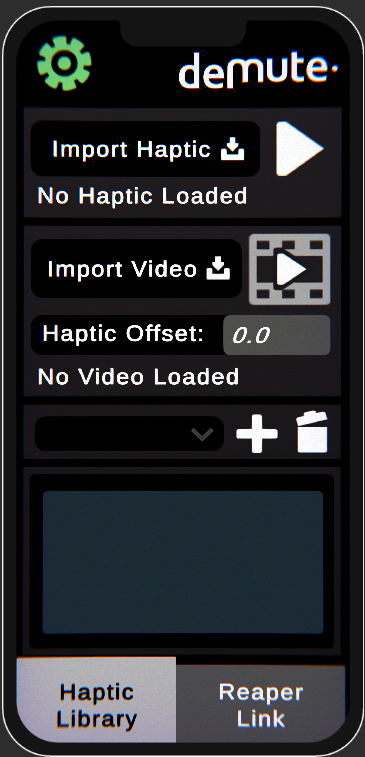
To load rendered files in the ReahapticReceiver app go to the Haptic Library tab. There you can Import a haptic file(supports .haptic and .haps) with the Import Haptic button and play it with the play icon. You can also import a refference video with the Import video button and set at what time the haptic should play with the Haptic Offset parameter.

You can save this preset(haptic + video + Haptic Offset) by clicking the plus button then it will appear in the dropdown alongside your other saved haptic-video presets. These presets reference the path of the haptic file so it will automaticaly have the latest version of the file when iterating.

‍

‍

How to use your exported haptic files in Game Engines:

Reahaptic supports multiple haptic files, We included some example files in the ExampleHaptics Folder:

  • .haptic: The file format used by the Nice Vibrations included in the Feel Unity plugin. You can use this plugin to Intergrade Haptics into your unity game and it automatically converts the files to work for IOS, android and game pad rumbles. Documentation for Nice Vibrations: https://feel-docs.moremountains.com/nice-vibrations.html
  • .haps: The file format used by Interhaptics. Interhaptics offers a cross platform and cross game Engine haptic Integration SDK. It's available for Unity and Unreal. Same as Nice vibrations It automatically converts the file to work IOS, Android and game pad rumbles.

IOS Installation:

To use the haptics receiver app on iOS you will need to build it yourself with Xcode. You can get the unity project here: Reahaptic Receiver After cloning the project you can build, make sure you have IOS as a platform. when you have built you can open it in xcode. make sure you have a xcode version that is compatible with the ios version you want to build for, you can check in the table here: xcode
Haptic Tracks

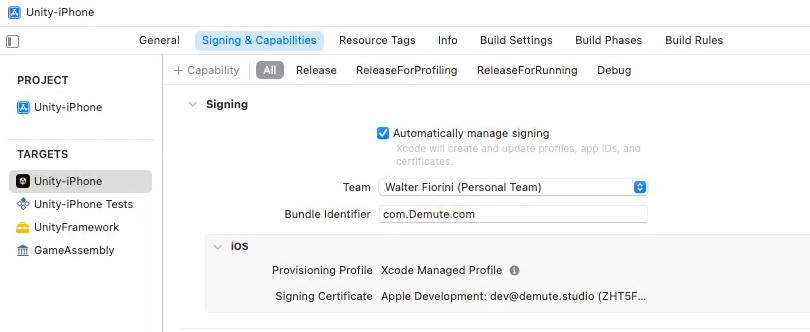
when you have opened the xcode project you need to select Unity-iPhone, there in "Signing and capabilities” you need to turn on Automatically manage signing. Select the team(if there is not one you need to create one) and change the name of the bundle identifier. Then select "unity-iPhone Test" and "UnityFramework" and change the team (not the identifier). Then you should be ready to build, connect your Iphone to your mac by cable (without adapters, needs to be directly to the mac) and select it in xcode at the top. in the Iphone you need to turn on developer mode. then you should be able to press the play shaped button to build, it will first build, if it succeeded it will try to install the app on your Iphone. your Iphone needs to be unlocked and you need to trust the account in Settings->General->VPN & Device Management-> Select your developer account and select trust. Then your app should Install and appear on your screen.

Android Installation:

you can find the latest .apk in the Releases: folder download it on your android phone and install it. Note that on android phones the quality of haptics can vary a lot. A lot of android phones especially older or cheaper ones do not have the ability to play advanced haptics. Meaning that on each android phone the haptics you created can feel different as they use different hardware. Here is an interesting article from Hapticlabs if you want more information about how haptics work in different phones: https://www.hapticlabs.io/showcase/haptics-in-our-smartphones

Windows Installation:

Find the latest build in the releases and download Windows.zip, unpack and run the .exe inside.

‍

‍

Planned future additions:

  • Add support for testing in VR
  • Add direct .AHAB support
  • Add a importing tool for unreal engine

‍

Support

For additional support you can contact us.
You can also join our public discord server at: https://discord.gg/srNFquSUtu