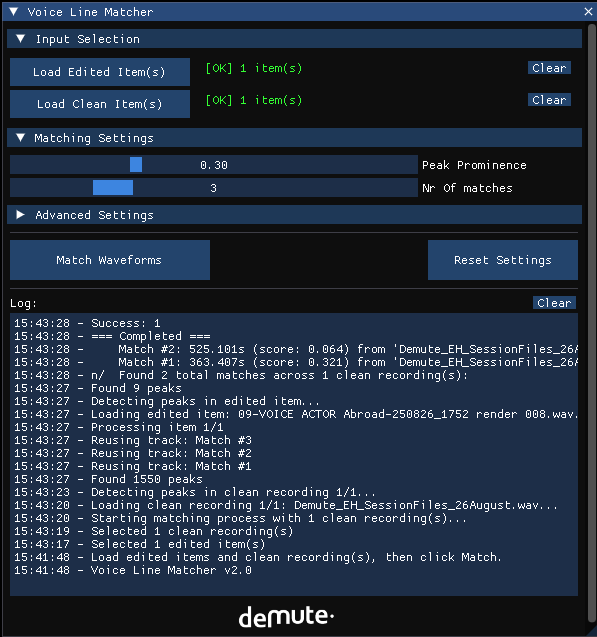
Add compareWaveform.lua as a new action in reaper, make sure the scripts folder is in the same location as compareWaveform.lua.
The Waveform Matcher is a REAPER tool that automatically matches similar voice recordings from different media items using peak detection analysis.
Why Use This Tool?
When doing remote voice recording (e.g., via SessionLink), you may work with two versions of the same audio:
Remote recording - already edited during the recording session but contains artifacts, compression, or quality issues
Clean local recording - Long uninterupted voice recording, high quality but unedited recorded localy by the voice actor.
Manually finding and matching each edited segment in the clean recording is time-consuming and error-prone. The Waveform Matcher automates this process, saving hours of work.
How It Works
Peak Detection Analysis
The Waveform Matcher uses a peak-to-peak pattern matching algorithm that compares the transient characteristics of audio waveforms:
Peak Detection: The tool identifies prominent amplitude peaks in both the edited and clean recordings
Pattern Extraction: For each peak, it analyzes the temporal pattern of surrounding peaks
Pattern Matching: The edited peak pattern is compared against every possible position in the clean file
Scoring: Matches are scored based on:
Peak timing accuracy - How closely peak positions align
Relative distances - The intervals between consecutive peaks
Amplitude similarity - The relative loudness of matched peaks
Envelope matching - Overall loudness contours
Accuracy & Limitations
Based on extensive testing across various recording conditions:
Accuracy Rates
The tool is quite resiliant against Network Latency, artifacts and background noise, but big differences in timing or cuts will decrease the accuracy.
Limitations
Very short clips without extra source content may not have enough peaks for reliable matching
Edited audio with rearranged glued audio won't match correctly
Multiple very similar takes may cause ambiguous matches - review results manually
Tips:
Multiple matches per item - The tool creates several match candidates ranked by score. This lets you choose the best one manually.
Watch the log - Error messages and match scores appear in the bottom panel
How to use the Waveform Matcher
Import your clean recordings and edited files into REAPER on separate tracks
Run the Waveform Matcher action from REAPER's action list
Load Edited Items
Select the edited item(s) in REAPER
Click "Load Edited Item(s)" in the Waveform Matcher GUI
Load Clean Items
Select the clean recording(s) in REAPER
Click "Load Clean Item(s)" in the Waveform Matcher GUI
Configure Settings(optional)
Peak Prominence - Lower values detect more peaks (default: 0.3)
Number of Matches - How many match candidates to create per edited item (default: 3)
Advanced Settings - Fine-tune detection parameters if needed
Run Matching
Click "Match Waveforms"
Monitor progress in the real-time progress bar
Review log messages for details and potential errors
Verify Results
Matched items are created on new tracks below the edited track