The FMOD Batch Importer is a standalone Windows/macOS application for importing audio assets into FMOD Studio projects.
Why Use This Tool?
Importing audio assets into FMOD Studio requires several manual steps per sound: creating an event, adding an audio track, assigning a bank, routing to a bus, and organizing into folders. This process repeats for every file in your project.
FMOD Batch Importer Tool automates this workflow. Point it at a folder of audio files, and it will:
Match audio files to existing events or create new ones
Organize events into the correct folder structure
Assign banks, buses, and asset folders based on your templates
Process entire directories in a single operation
How It Works
The FMOD Batch Importer operates directly on your FMOD project's XML files, bypassing FMOD Studio's manual workflow:
Project Parsing: The tool reads your .fspro project and indexes all existing events, banks, buses, and folder structures.
File Scanning: Audio files in the selected directory are scanned and their filenames are parsed using value-based matching to extract prefix, feature name, and action segments.
Event Matching: In Match Template mode, each audio file is compared against template events using fuzzy matching and scored by confidence. In Generate from Pattern mode, events are built from the naming pattern.
XML Generation: For each matched or generated event, the tool writes the corresponding FMOD XML structures (event definitions, audio tracks, instrument containers, bank and bus assignments).
FMOD Studio CLI Import: The tool invokes fmodstudiocl.exe to finalize the import and register the new assets within the project.
CRITICAL WARNING
ALWAYS CLOSE FMOD STUDIO BEFORE USING THIS TOOL!
This tool directly manipulates XML files in your FMOD project. Having FMOD Studio open while running this tool can cause:
Data corruption
Loss of changes
Conflicts between the tool and FMOD Studio
Unpredictable behavior
Recommended workflow:
Close FMOD Studio completely
Run FMOD Batch Importer Tool
Complete your import
Open FMOD Studio
Save your project (Ctrl+S)
Features
Automatically create FMOD events from audio files
Detect and import from existing template folders
Match audio files with events using fuzzy matching
Organize events in specific folders
Assign banks, buses, and asset folders
Recursive subdirectory scanning with duplicate conflict resolution
Dynamic Tag System with value-based parsing and $actions tag
Case format selection (Title_Case, PascalCase, camelCase, snake_case, etc.)
Choose between MultiSound and SoundScatterer instrument types
Build banks directly after import
Dark mode support
Requirements
Required Software
FMOD Studio
Version 2.0 or higher recommended
Works with FMOD Studio projects (.fspro)
macOS Requirements
Important for macOS Users:
The system Python on macOS (3.9.6) ships with an outdated Tkinter 8.5 that causes GUI rendering issues (blank window). You must install Python 3.11+ with modern Tkinter 8.6.
The launcher script (launch.command) automatically detects and uses the correct Python version. It displays the detected Python and Tkinter versions at launch.
Usage
Launching the Application
Windows:
Double-click FmodImporter.exe
The first launch may take a few seconds as the executable extracts its dependencies.
macOS:
Double-click launch.command in the FmodImporter-Dev folder
The launcher automatically detects the correct Python version
User Guide
1. Paths
Close FMOD Studio before proceeding.
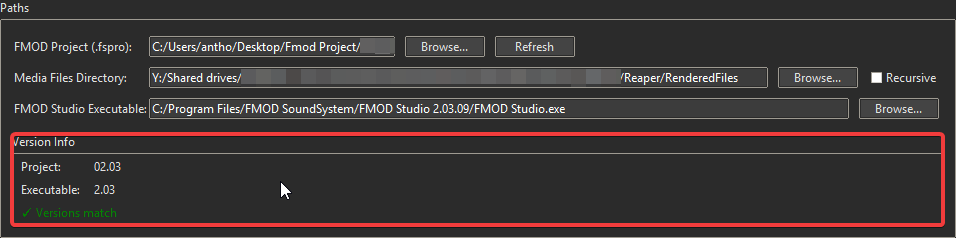
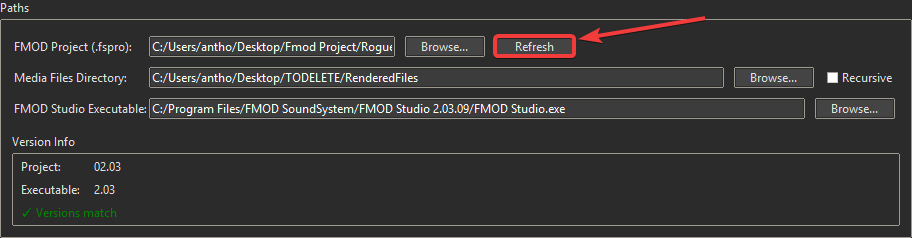
FMOD Project (.fspro): Select your project file. The project loads automatically on selection.
Media Files Directory: Folder containing your audio files (.wav, .mp3, etc.). Check Recursive to include subdirectories (off by default).
FMOD Studio Executable: Path to fmodstudiocl.exe or FMOD Studio.exe. Auto-detected on macOS. Configure in Settings if not found automatically.
The Version Info panel shows the project and executable FMOD versions, with a status indicator (✓ match / ⚠ mismatch).
All paths can be saved as defaults via Settings so they load automatically on next launch.
2. Pattern Setup
This section controls how events are named and matched. It contains two import modes, selectable via radio buttons:
Match Template Mode (Default)
Use this mode when you have existing FMOD events to use as templates.
A Template Folder is an FMOD event folder containing pre-configured events with settings you want to reuse (FX chains, volume, bus routing, etc.). These events follow a consistent naming pattern with action suffixes. For example:
When you create a new feature (e.g., FeatureName = "BlueEyesWhiteDragon"), the tool matches your audio files to these template events by their action suffixes (Alert, Ambush, AttackA, etc.), then duplicates the template events with their full configuration, preserving FX, volume, and routing, while renaming them to match the new feature (SfxBlueEyesWhiteDragonAlert, SfxBlueEyesWhiteDragonAttackA, etc.).
How it works:
Select a Template Folder containing existing events
The tool matches your audio files to template events using fuzzy matching
New events are created based on the template structure, preserving all settings
Check Auto-create missing events to generate events for files that don't match any template.
Generate from Pattern Mode
Use this mode to create events based on file naming patterns, without templates. The Template Folder field is hidden in this mode.
The tool parses filenames using value-based matching to find prefix and feature values
Events are created based on the Event Name Format pattern
Common fields (both modes)
Prefix: Prefix for event names (e.g., "Sfx"). The tool uses this value to identify and parse your audio filenames, and to build the $prefix segment of event names.
FeatureName: Feature or character name (e.g., "BlueEyesWhiteDragon"). Same as Prefix: the tool uses this value to parse filenames and to build the $feature segment. In Match Template mode, this is also what replaces the template's original feature name in the new events.
Event Name Format: Pattern defining how the new events will be named (e.g., $prefix_$feature_$actions). This does not affect how existing template events are read, only how the output events are constructed. Use the ? button for tag reference.
Case Format: Output format: Title_Case, PascalCase, camelCase, snake_case, UPPER_CASE, lowercase, or As-Is
A live preview below the pattern field shows the formatted event name based on your current settings.
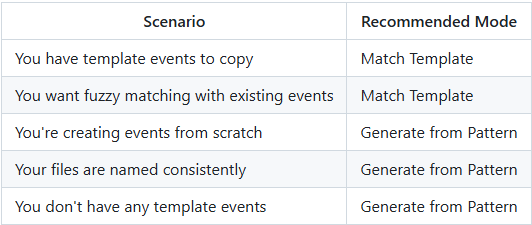
Which mode should I use?
3. Import Setup
This section defines where events are created and how they are routed:
Event Folder Path: FMOD folder where events are created
Asset Folder Path: Audio asset folder for imported files
Bank Path: FMOD bank to assign to events
Bus Path: Mixing bus for events. In Match Template mode, the bus is auto-detected from the template if available. If no bus is selected or found in the template events, events default to the Master bus.
4. Preview and Workflow
Click Analyze to populate the preview. The main area shows:
A legend bar above the tree summarizes the key interactions and confidence indicators:
| Click ☑ column to toggle import | Confidence: ✓ High (≥95%) ~ Good (≥85%) ? Uncertain (≥70%) | + Auto-created (Double-click to rename)
Matched Events tree with columns:
Event Name: Hierarchical view of events and their audio files
☑: Toggle import on/off per event
Bank: Bank assignment
Bus: Bus routing
Instrument: MultiSound or SoundScatterer
Double-click an event name or press F2 to rename it. Right-click for context menu options.
Instrument type: Each event with multiple audio files uses a container instrument. Click the Instrument column on any event to toggle between MultiSound and SoundScatterer. To change all events at once, use the "All → Multi" / "All → Scatterer" buttons below the preview tree.
Confidence indicators:
✓: High confidence match (≥95%)
~: Good confidence match (≥85%)
?: Uncertain match (≥70%)
+: Auto-created event (no template)
Orphan panels (right side):
Orphan Events: Events without assigned media. Right-click or drag to assign.
Orphan Assets: Media files without a matching event. Right-click or drag to assign.
Once satisfied with the matches, click Import.
5. Conflict Resolution
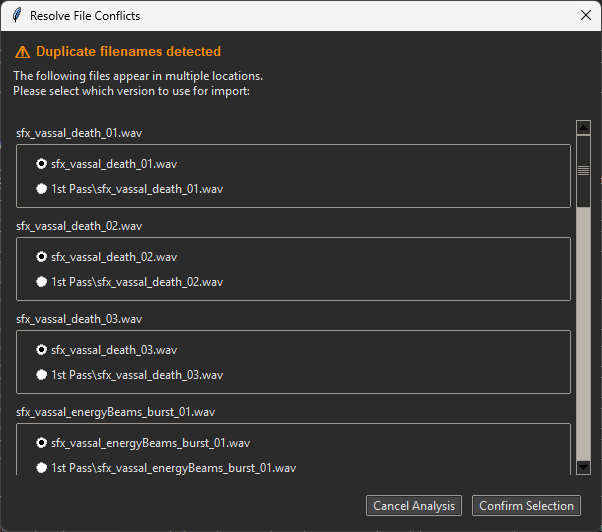
When using Recursive Scan, the tool may find multiple files with the same name in different subdirectories (e.g., FolderA/shot.wav and FolderB/shot.wav).
If conflicts are detected during analysis:
A Resolve File Conflicts window appears automatically
It lists all duplicate filenames
For each file, select which version (path) to use
Click "Confirm Selection" to proceed
6. Import and Finalization
Once satisfied with the preview, click Import.
Note: If FMOD Studio is currently open, the tool blocks the import and asks you to close it before proceeding.
A progress dialog tracks each step:
"Preparing to import...": Validation
"Copying audio files...": Files copied to FMOD Assets folder
"Executing FMOD Studio import...": FMOD Studio processing events
The dialog closes automatically on completion. Avoid starting another import until the current one finishes.
After a successful import:
You are prompted to build banks. If you accept, a setup dialog lets you select target platforms and build scope (all banks or imported banks only).
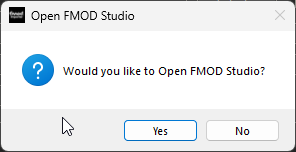
After the build (or if you decline), you are prompted to open FMOD Studio directly.
Once in FMOD Studio, save your project (Ctrl+S).
Advanced Settings
Access via the "Settings" button at the bottom of the interface.
Default Values
Configure default values to skip repetitive setup on each launch:
Set up your paths and settings in the main interface
Click "Settings"
The dialog opens with current values pre-filled
Click "Save" to store as defaults
On next launch, saved values load automatically
What you can save:
Default FMOD Project: Your .fspro file path
FMOD Studio Executable: Path to fmodstudiocl.exe or FMOD Studio.exe
Default Media Directory: Audio files folder
Default Template Folder: Commonly used template folder
Default Bank: Preferred bank
Default Destination Folder: Default event folder
Default Bus: Standard mixing bus
Default Instrument Type: MultiSound or SoundScatterer
Common Use Cases
Case 1: Create variations from a template
Scenario: You have a "WeakTemplate" and want to create events for a new character "Dragon"
Import Mode: Match Template (default)
Prefix:Sfx
FeatureName:Dragon
Template Folder: Select "WeakTemplate"
Destination Folder: Select or create "Dragon"
Media Files: Point to new audio files
Analyze then Import
Case 2: Import from consistently named files
Scenario: You have files like Sfx_Dragon_Attack.wav, Sfx_Dragon_Idle.wav
Import Mode: Match Template or Generate from Pattern
Event Name Format:$prefix_$feature_$actions
Case Format: Title_Case
Destination Folder: Choose target folder
Bank, Bus: Select appropriate values
Media Files: Point to your files
Analyze then Import
Case 3: Transform file naming to a different format
Scenario: Your files are named sfx_dragon_attack.wav but you want events named SfxDragonAttack
Import Mode: Match Template or Generate from Pattern
Event Name Format:$prefix$feature$actions
Case Format: PascalCase
Analyze then Import
Troubleshooting
Error after reverting an import
Scenario: You just imported, then noticed missing files, wrong naming, or incorrect events. You revert the import (manual deletion or source control), adjust your settings, and try to re-import, but the tool displays an error.
Cause: The tool's internal state still reflects the previous import. The FMOD project files on disk have changed externally, but the tool has not reloaded them.
Solution: Click the Refresh button to resynchronize the tool with the current state of the FMOD project, then run Analyze again before importing.
"Could not find FMOD Studio executable"
Cause: FMOD Studio not found in standard installation paths.
Solution (Windows):
Click "Settings" button at bottom of window
Click "Browse..." next to "FMOD Studio Executable"
Select fmodstudiocl.exe or FMOD Studio.exe from your FMOD installation
Click "Save"
Solution (macOS):
Click "Settings" button
Click "Browse..." next to "FMOD Studio Executable"
The tool checks common locations and prompts if found
If not found, navigate to /Applications and select the executable inside FMOD Studio.app/Contents/MacOS/
Click "Save"
"Please specify prefix and feature name"
Cause: Prefix or FeatureName fields are empty or contain placeholder text.
Solution: Fill in both required fields with actual values (not "e.g. Sfx" or "e.g. Dragon").
"Please select an audio asset folder"
Cause: No asset folder selected.
Solution: Click "Select..." next to "Asset Folder" and choose a folder.
"Please select a destination folder"
Cause: Destination folder not selected.
Solution: Click "Select..." next to "Event Folder" and choose a folder.
"Please select a bank"
Cause: No bank selected.
Solution: Click "Select..." next to "Bank" and choose a bank.
Import does nothing / no changes in FMOD
Cause: Changes not saved yet, or FMOD Studio was open during import.
Solution:
Ensure FMOD Studio was closed during import
If FMOD was open during import, changes may be lost, run import again with FMOD closed
Open FMOD Studio
File > Save Project (Ctrl+S)
Import progress dialog appears stuck
Cause: Import is processing a large project or FMOD Studio is taking longer than expected.
Solution:
Wait, large imports may take several minutes
Check if FMOD Studio process is running in Task Manager
If stuck for an extended period, the import will timeout automatically
If timeout occurs, check:
FMOD Studio installation is working correctly
Project files are not corrupted
Sufficient disk space and permissions
Try importing again with a smaller batch of events
Note: The progress dialog cannot be closed manually. This prevents interrupting the FMOD Studio process mid-import, which could corrupt the project.
"FMOD version mismatch detected"
Cause: Project FMOD version doesn't match installed FMOD Studio executable version.
Solution:
Check the version display in the main interface (Project version vs Executable version)
Either:
Update your FMOD Studio installation to match the project version
Upgrade/downgrade the FMOD project to match your executable version
The tool prevents import until versions match to avoid compatibility issues
Version detection is automatic when you load a project
"Failed to load project"
Possible causes:
FMOD Studio is currently open with the project
.fspro file is corrupted
Metadata folder doesn't exist
Insufficient permissions
XML files are locked by FMOD Studio
Solution:
Close FMOD Studio completely
Verify the project opens correctly in FMOD Studio
Close FMOD Studio again before using the tool
Audio files not detected
Check:
Files have extension .wav, .mp3, .ogg, .flac, etc.
Folder path is correct
You have read permissions
macOS: Blank window / GUI not visible
Cause: Using system Python 3.9.6 with outdated Tkinter 8.5.
Solution:
Install Python 3.11+ with modern Tkinter:
brew install python@3.11 python-tk@3.11
The launcher script automatically detects and uses it
Verify: You should see "Tkinter version: Tk 8.6" when launching
If you see this warning:
WARNING: Using system Python (may have old Tkinter 8.5)
Install Python 3.11+ as described above.
Tips and Best Practices
Do
Always backup your FMOD project before using the tool
Verify matches before importing
Use consistent file names for better automatic matching
Test with a small set of files first
Avoid
Don't have FMOD Studio open while using this tool (see Critical Warning)
Don't interrupt import in progress
Don't modify FMOD project files while tool is running