


The Audio Containers Template improves the production speed and the user experience of MS graphs. The containerization logic helps you transition from other sound engines and offers a fast learning curve.
It works by using new UE 5.8 features and a diamond-shaped procedural node placement.
The MetaSound Audio Containers Template is part of the Unreal Tech Audio Toolkit plugin, so follow the installation instructions here.
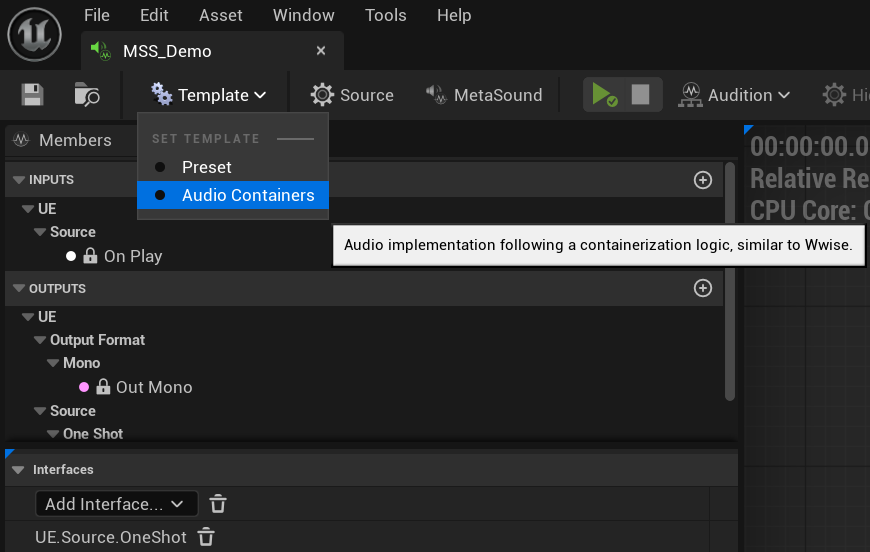
Create a new MetaSound graph. Select the “Template” drop-down and click on “Audio Containers”. This will open the “MetaSound” tab and show the Root Container.
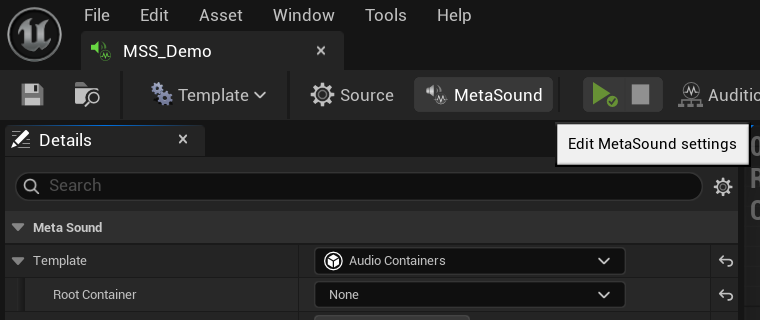
You can now start your implementation logic using the different containers. When you select a container class, an arrow will appear on the left to drop-down the container properties.
These are the following:
Each container also has a “Modifier” category, which can apply playback, volume, pitch, and lowpass randomization effects.
UX features
The Audio Containers Template inherits from Unreal Engine’s native user interface. This can bring readability issues when embedding lots of different containers.
Nevertheless, it also comes with useful possibilities, such as native copy/paste and undo functionalities. Whenever you realize you need to apply a container on top of everything you have already made, you can avoid re-doing your entire template by copy/pasting your root container. First, save the MS file, copy your highest-level container, and change it for the new one. Then, inside the children of the new container, paste, and you should have your old root container data inside the new one.
Note: the shortcut for copy/pasting the container data is not Ctrl+C / Ctrl+V, but Shift+RMB / Shift+LMB.
If the manipulation fails, you can always undo it until your old container comes back. This copy/paste feature is also interesting if you want to store a template configuration inside a blank MS file and reuse it for future needs.
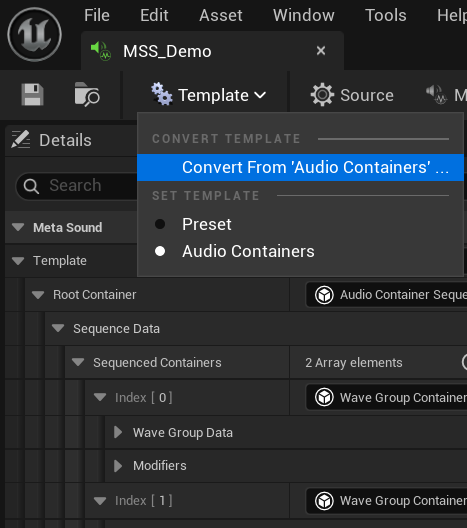
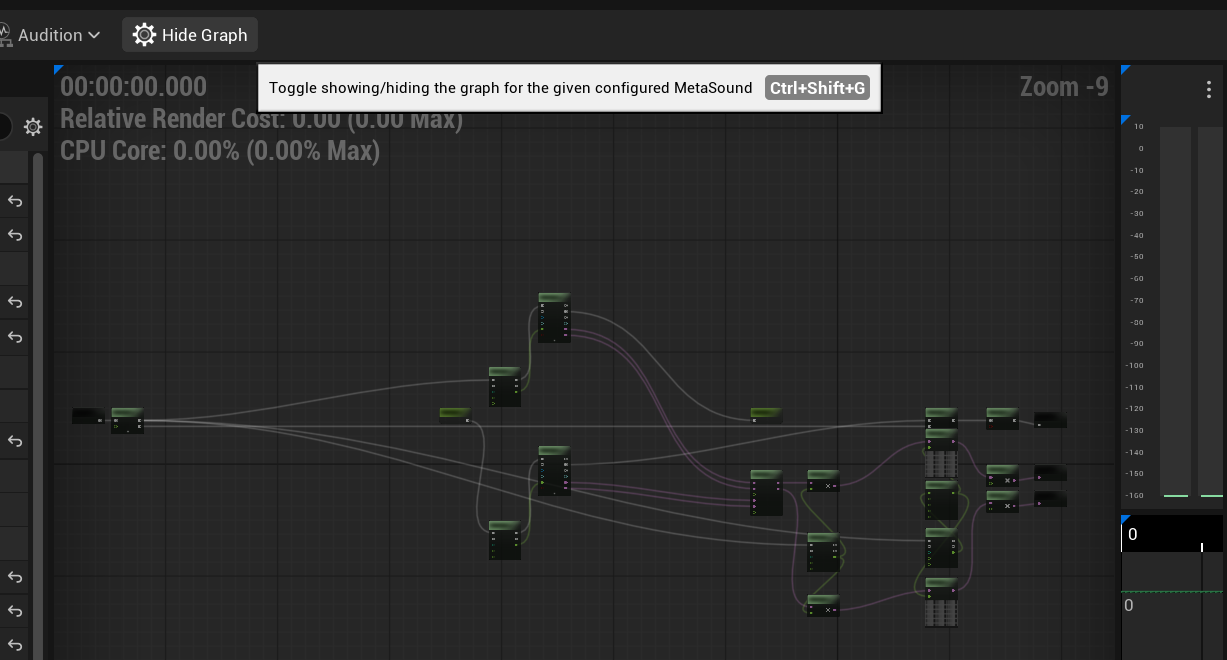
MS templates can also be converted to a full editable graph. To do so, select the “Template” drop-down and click on “Convert from ‘AudioContainers’… “. This will erase your container's data, so do a backup if necessary. You will start your graph from the nodes placed by the template. While editing a template, you can show/hide the graph with the top-right button of the header.
1.0 - Initial version